
WhatsApp Schedule Calls Feature: New Call Scheduling for Group and Personal Chats

whatsapp schedule calls feature

Coordination has never been smoother for WhatsApp users. The new WhatsApp schedule calls feature brings much-needed convenience by allowing users to pre-plan voice and video calls—be it for work, family chats, or group meetups.

Now, with scheduled reminders, improved call management tools, and interactive in-call enhancements like “Raise Hand” and emoji reactions, WhatsApp transforms how conversations begin and unfold.

In this TazaJunction.com article, we explore how to use this new feature, examine its advantages, and assess its impact on both personal and professional communication.

Whether you’re organizing a meeting or catching up with loved ones, the WhatsApp schedule calls feature offers a smarter, more engaging calling experience.


What Is the WhatsApp Schedule Calls Feature?

The WhatsApp schedule calls feature enables users to set up one-on-one or group calls in advance directly from the Calls tab. Instead of relying on spontaneous invites, users can now:

  • Choose a date and time for the call
  • Invite individuals or entire groups
  • Share the call link instantly
  • Automatically sync with personal calendars

All scheduled participants receive timely reminders before the call begins, making it much less likely for important discussions to be missed. This innovation merges WhatsApp’s ease with the structural advantages of professional meeting apps.

Also, WhatsApp is rolling out an exciting new feature that allows users to set WhatsApp reminders directly on messages. You can read more about it.


How to Use the Schedule Calls Feature

Using the WhatsApp schedule calls feature is intuitive and streamlined:

  1. Open the Calls tab in WhatsApp.
  2. Tap the “+” button and select Schedule Call.
  3. Select your contact or group for the scheduled call.
  4. Choose the type of call (voice or video), date, and time.
  5. Confirm the schedule and optionally share the invitation link.
  6. All participants receive notifications and can add the event to their calendars.

Once scheduled, the call appears under the Calls tab with attendee details, and you can track RSVPs or share the link again as needed.


Key Benefits of the WhatsApp Schedule Calls Feature
image 68

1. Enhanced Call Planning

Instead of chasing people in real time, you can plan ahead. The WhatsApp schedule calls feature encourages better time management and clearer expectations for all participants.

2. Reduced No-Shows

With built-in reminders and calendar integration, forgotten calls become less of a problem—making planning more reliable whether it’s for family chat or business meet-up.

3. Improved Call Management

The updated Calls tab now tracks upcoming calls and their participants, helping you stay organized and ready for scheduled conversations.

4. Better Engagement in Group Calls

In-call tools like Raise Hand and emoji reactions elevate interaction by enabling you to respond or request to speak without disruptions—making group call flow smoother and more respectful.

5. A Step Toward Unified Communication Tools

With the WhatsApp schedule calls feature, WhatsApp is increasingly aligning itself with professional collaboration platforms (like Zoom or Teams) without sacrificing its user-friendly appeal.


How WhatsApp Matches Professional Calling Platforms?

Meta’s addition of the WhatsApp schedule calls feature helps the platform catch up with enterprise tools. Here’s how it measures up:

FeatureWhatsApp Schedule CallsTraditional Meeting Apps
Schedule & Send InvitesYes, built-inYes
Calendar IntegrationYes, optionalYes
RemindersYesYes
In-Call FeaturesRaise hand, reactionsYes, with more depth
Ease of UseHigh, familiar UXVaries by platform
SecurityEnd-to-end encryptionOften encryption optional

WhatsApp now blends ease of use, trust, and enhanced features in a clean, mobile-centric format—making the WhatsApp schedule calls feature a welcome upgrade.


Real-World Use Cases

  • Remote Work Meetings: Schedule a catch-up with your team and manage participation easily.
  • Virtual Family Gatherings: Plan monthly video family time—every participant joins on time, reminded ahead.
  • Online Study Groups or Classes: Set up group discussions or webinars in advance with interactive participation tools.
  • Community Coordination Calls: Neighborhood or volunteer groups can plan sessions without last-minute coordination struggles.

These scenarios highlight how the WhatsApp schedule calls feature benefits both personal and professional users—without needing new apps.


Privacy, Security, and Global Rollout

WhatsApp stakeholders emphasize that despite its advanced calling features, privacy remains a cornerstone. All calls made via the new feature are still protected with end-to-end encryption, meaning even scheduled interactions retain WhatsApp’s high privacy standards.

Rollout is global but gradual. Some users might see it immediately, while others may get it in the coming days. Be sure to update to the latest app version for access.


Tips to Maximize the WhatsApp Schedule Calls Feature

  • Double-check the timezones when inviting international participants.
  • Set reminders or sync with your calendar to avoid missed connections.
  • Enable notifications specifically for upcoming scheduled calls.
  • Use links wisely—only share with intended participants to prevent link abuse.
  • Balance casual and professional tone—scheduled calls may warrant more structure than spontaneous chats.

These small practices make the WhatsApp schedule calls feature work effortlessly and responsibly.


Final Thoughts

The WhatsApp schedule calls feature transforms how we plan and engage in conversations—making them more structured, interactive, and reliable.

Paired with intuitive tools like “Raise Hand,” emoji reactions, and improved call tracking, this update brings WhatsApp closer to becoming a universal platform for both personal catch-ups and virtual meetings.

Whether it’s catching up with family or organizing work calls, WhatsApp now gives you more control, clarity, and convenience than ever before.
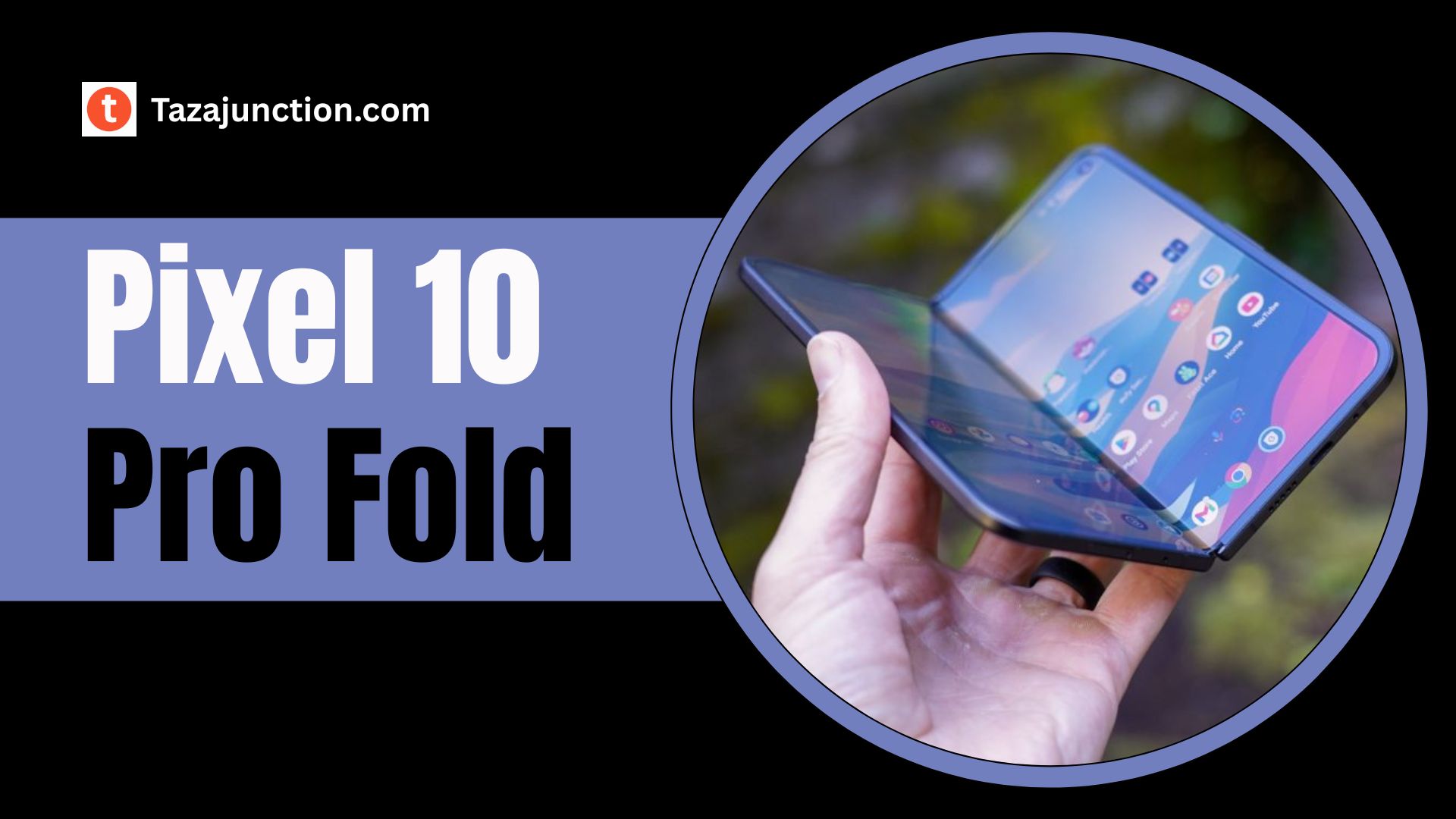
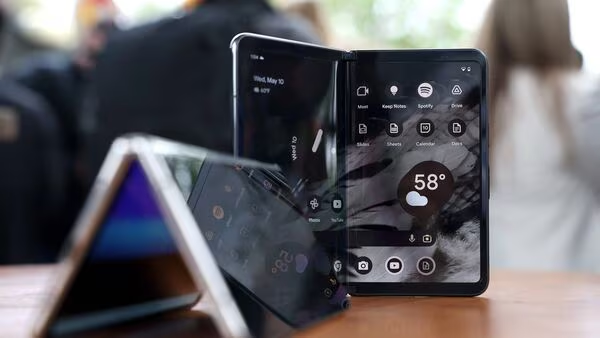
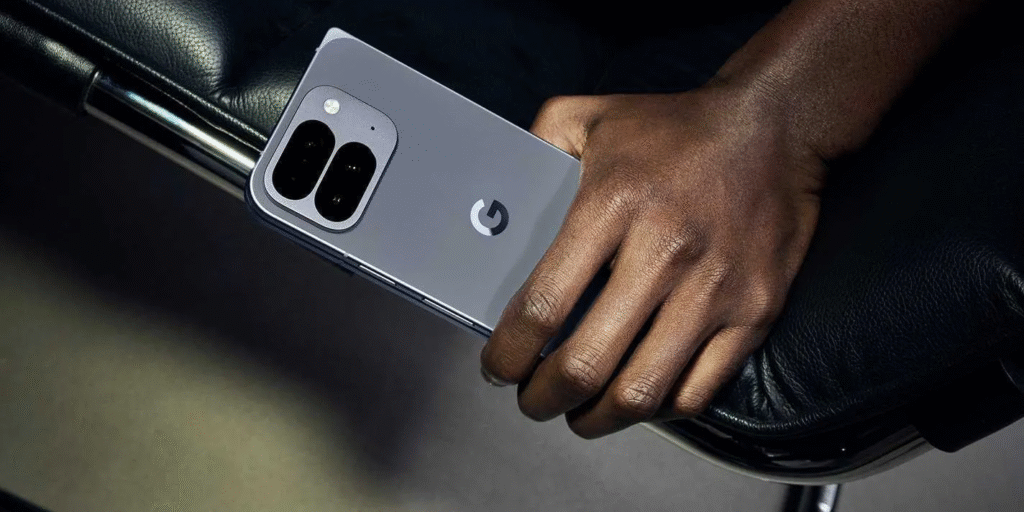
Pixel 10 Pro Fold IP68: A Foldable First in Durability and Design

pixel 10 pro fold

The world of foldable smartphones is evolving rapidly, but one major limitation has consistently held them back—durability. Foldable devices, while stylish and innovative, often lack strong protection against dust and water.

That may be about to change with the Pixel 10 Pro Fold IP68, tipped to become the first foldable phone with full IP68 certification, setting a new benchmark for toughness in flexible screen technology.

This development not only showcases Google’s engineering ambitions but also signals a possible turning point in consumer trust toward foldables.

Here’s everything on TazaJunction.com you need to know about this upcoming device, what IP68 certification means, and why it’s such a big deal.


What Is IP68 Certification and Why It Matters?

Before diving into the Pixel 10 Pro Fold, it’s important to understand what IP68 actually means. An IP (Ingress Protection) rating measures how well a device is protected against dust and water.

The “6” in IP68 means it is completely dust-tight, while the “8” indicates it can withstand immersion in up to 1.5 meters of water for up to 30 minutes.

For most standard smartphones, IP68 has become a staple of durability. But for foldable phones, achieving this has proven nearly impossible—until now.

Foldable hinges and the flexible nature of the screens introduce complex engineering challenges that make sealing off dust and water extremely difficult.

The Pixel 10 Pro Fold IP68 rating would mark the first successful integration of this level of protection in a foldable device. If confirmed, this could bring foldables much closer to parity with traditional smartphones in terms of resilience.


Why the Pixel 10 Pro Fold IP68 Leak Is a Game-Changer?

image 53

If this leak holds true, Google is not just iterating on past designs—it’s revolutionizing them. Previous foldables have only managed partial protection.

A full IP68-rated foldable would be a technological leap, showcasing Google’s mastery over both hardware innovation and user-centered design.

With this move, Google would finally silence a major concern among potential buyers: durability. Many users remain hesitant to adopt foldables due to their perceived fragility. By tackling this head-on, the Pixel 10 Pro Fold could boost consumer confidence and set a precedent for competitors.


The Design Enhancements: More Than Just Toughness

Durability may be the headline, but it’s not the only area where the Pixel 10 Pro Fold IP68 shines. According to early reports, Google is introducing several upgrades that elevate the phone’s usability and performance across the board:

  • Refined Hinge Mechanism: A slimmer and more sealed hinge to protect against debris while improving fold smoothness.
  • Bigger Outer Display: A 6.4-inch cover screen, slightly larger than the previous generation, with minimal bezels.
  • Slimmer Build: Despite the added protection, the device may be thinner and lighter, reflecting improved material choices.

These changes indicate that Google isn’t sacrificing form for function. Instead, it’s aiming to deliver a product that balances sleek aesthetics with day-to-day durability.


Hardware Specs and Performance Expectations

Beyond the structural improvements, the Pixel 10 Pro Fold IP68 is expected to come with significant performance enhancements:

  • Tensor G5 Chipset: Built on a 3nm process, the new processor will likely offer better power efficiency, improved AI processing, and longer battery life.
  • UFS 4.0 Storage: Available in 256GB, 512GB, and even 1TB variants, ensuring faster data speeds and reduced loading times.
  • Battery Life: A larger 5,015mAh battery, slightly improved from previous models, with 23W wired charging and wireless charging compatibility.
  • Display Technology: A high-refresh-rate 120Hz OLED panel on the inside and a super-bright outer display for usability in all lighting conditions.
  • Camera System: A triple-camera setup with telephoto, wide, and ultra-wide lenses, supported by AI enhancements for sharper, more dynamic photography.

All of these upgrades combined with IP68 protection position the Pixel 10 Pro Fold as one of the most capable foldables yet.


What It Means for the Foldable Industry?

image 54

If Google pulls this off, the Pixel 10 Pro Fold IP68 could redefine expectations across the entire foldable market. For years, foldables have been niche products, admired for their novelty but criticized for poor durability and high costs. This phone has the potential to change that narrative.

Manufacturers like Samsung, Motorola, and Huawei may be forced to accelerate their own durability innovations to compete. This can only be a win for consumers, pushing foldables from luxury gadgets into more practical, everyday tools.

The success of the Pixel 10 Pro Fold could also inspire more rugged models that can truly withstand real-world conditions—from sandy beaches to rainy commutes.


Who Should Consider the Pixel 10 Pro Fold IP68?

If the leaks are accurate, the Pixel 10 Pro Fold IP68 will appeal to a broad range of users, including:

  • Tech Enthusiasts: Those who want to be on the cutting edge of mobile innovation.
  • Professionals: People who need a large screen for productivity but require durability for work on the go.
  • Frequent Travelers: Users who want a versatile phone that won’t fall apart during rugged travel.
  • Pixel Loyalists: Fans of Google’s software-first ecosystem and seamless Android integration.

In short, this could be the foldable that finally caters to both power users and casual consumers.


Launch Expectations and Pricing

While Google has not confirmed an official release date, rumors suggest an unveiling around August 21, with availability in October. Given the premium upgrades and durability enhancements, pricing is expected to start higher than the previous Pixel Fold, potentially reaching the $1,899 mark for base models.

However, if the Pixel 10 Pro Fold IP68 delivers on its promises, many users may find the investment worthwhile—especially with the added peace of mind from improved durability.


Final Thoughts

The Pixel 10 Pro Fold IP68 might just be the most important foldable release to date. More than a spec bump, this model symbolizes the maturity of foldable technology. Google is not just experimenting anymore—it’s solving real problems that have plagued foldables since their inception.

For consumers, this means one less compromise. For competitors, it’s a wake-up call. And for the industry as a whole, it’s a signal that foldables are no longer experimental—they’re practical, powerful, and ready for the mainstream.

As we await official confirmation, one thing is clear: if the Pixel 10 Pro Fold does in fact feature IP68 certification, Google will have achieved something none of its rivals could. The foldable future just got a lot more durable.

YouTube AI Child Detection: How the Platform Uses AI to Spot Children Posing as Adults

youtube ai child detection

In response to growing concerns about child safety and deceptive content, YouTube is leveraging artificial intelligence to better detect when children are posing as adults on its platform.

This latest move, centered around YouTube AI child detection, aims to flag potentially problematic content, apply appropriate restrictions, and ensure responsible content moderation across millions of videos.

Here’s a TazaJunction.com deep dive into why YouTube is investing in this technology, how it works, and the broader implications for user safety, creator transparency, and privacy.


6 Reasons Why “YouTube AI Child Detection” Is Being Prioritized

  1. Child Safety Concerns: With a surge in videos featuring minors—especially in gaming or educational contexts—YouTube AI child detection helps identify cases where children might be misrepresented or placed at risk.
  2. Policy Compliance & Regulation: Enforcement of child protection laws like COPPA has become a global priority. The YouTube AI child detection system helps YouTube remain compliant and proactive.
  3. Prevention of Exploitation: Some creators have potentially exploited ambiguity around age to attract adult viewers. YouTube AI child detection allows the platform to flag such content early.
  4. Better Content Moderation: Human review alone can’t scale across billions of videos. YouTube AI child detection automates spotting risky patterns, funneling them for priority review.
  5. Maintaining Trust: With public scrutiny of child-centric content growing, YouTube AI child detection reassures users and brands that safety is being taken seriously.
  6. Empowering Responsible Creators; Creators who include minors in content can receive alerts and guidance, helping them avoid policy violations unintentionally.

How YouTube AI Child Detection Works?

image 50

1. Facial Recognition & Age Estimation

The core technology analyzes facial features—such as eye distance, skin texture, and facial structure—to estimate the age of on-camera subjects. If a person appears significantly under 18, the video may trigger a review.

2. Behavioral Cues & Context Analysis

Beyond facial data, the system accounts for voice patterns and lighting (like low-angle shots that obscure a subject’s age). If someone tries to mask identity or looks overly youthful, YouTube AI child detection adds another red flag.

3. Metadata & Description Checks

The AI also examines titles and descriptions—terms like “mom and kid” or mentions of school—providing contextual hints that someone masked as an adult might actually be a child.

4. Privacy-Preserving Design

YouTube AI child detection runs analysis internally only. No facial data is saved externally, and creators are not identified on the platform—it operates entirely within YouTube moderation pipeline.


What Happens When Content Is Flagged?

Once YouTube AI child detection flags a video, several actions may follow:

  • Restriction: The video may be marked as “Made for Kids” or receive limited exposure through algorithmic downranking.
  • Human Review: A content moderator verifies whether the person is indeed underage posing as an adult.
  • Policy Enforcement: If rule violations exist, the video may receive age gating, reduced monetization, or removal.
  • Creator Feedback: Channels may receive suggestions for how to adjust content, such as adding age disclaimers or disclaiming minors are featured.

The process aims to balance safety without penalizing legitimate creators.


Ethical and Privacy Considerations

Deploying facial recognition—even when sensitive—raises important ethical questions:

  • Consent & Awareness: Creators featuring minors may not be aware of AI detection mechanisms. YouTube must ensure transparency and clear policy communication.
  • Bias & Fairness: Facial-recognition technology has shown biases in age/ethnicity estimation. YouTube AI child detection needs ongoing refinement to ensure equitable treatment.
  • Privacy Safeguards: All analysis happens in-house, with no external data retention. The focus is on improving content safety without personal profiling or identity tracking.

Community Response & Creator Feedback

Creators’ reactions to YouTube AI child detection have been mixed:

  • Support from Safety Advocates: Many applaud the initiative, recognizing the need for new tools to protect minors from manipulation and exploitation.
  • Concerns Among Family Creators: Channels featuring children worry about false flags, reduced visibility, or monetization impacts—highlighting the need for clear guidance and appeals.

For creators, transparency and direct communication from YouTube will be key to trust in this AI approach.


How YouTube AI Child Detection Fits With Broader Safety Efforts

YouTube has long aimed to keep content safe for all ages. YouTube AI child detection complements existing initiatives such as:

  • Restricted Mode
  • COPPA-Compliant Designations
  • Content Moderation Tools
  • Behavioral Nudges

Using AI to detect misrepresentation is a natural progression in YouTube’s evolving safety strategy.


Final Thoughts

The launch of YouTube AI child detection reflects how platforms must evolve to protect users in increasingly complex digital ecosystems. While no system is perfect, combining automated analysis with human oversight provides a scalable, responsible path forward.

If implemented thoughtfully—with transparency, fairness, and continued public scrutiny—YouTube AI child detection could be a model for how technology safeguards vulnerable users without compromising creative freedom.

Microsoft Edge Heavy Chrome Users Targeted With New Persuasive Prompts

microsoft edge heavy chrome users

In the ongoing browser battle, Microsoft isn’t holding back. According to reports, Microsoft edge heavy Chrome users targeted means Windows 11 users who rely heavily on Google Chrome—over 90% of their browser usage—may soon face increasingly persistent prompts nudging them to switch to Microsoft Edge.

This move, buried in Edge’s latest development builds, marks a strategic escalation in the company’s efforts to convince users to abandon Chrome.

Here’s a TazaJunction.com deep dive into what’s happening, how it affects end users, and why the strategy may risk user trust.


What’s Unfolding: A Closer Look

In the latest Canary build of Microsoft Edge for Windows 11, tech sleuths uncovered new flags—settings reflecting plans to show prompts only to Microsoft Edge heavy Chrome users.

One flag triggers a pop-up suggesting users pin Edge to their taskbar once they close the browser, while another activates only if Chrome usage exceeds 90%, suggesting highly targeted nudging.

These plans signal that Microsoft wants to convert frequent Chrome users by positioning Edge prominently and making it harder to ignore.


A Pattern of Pushing

This is not Edge’s first persuasive attempt. Microsoft has long experimented with prompts and pop-ups:

  • Messages on Edge discouraging Chrome downloads like “That browser is so 2008!”
  • Automatic imports of Chrome tabs (even without user consent)
  • Full-page banners on Bing when searching for “Chrome”
  • Prompts promoting Edge’s security and AI features over Chrome

Now, Microsoft Edge heavy Chrome users appear to be a focal target for the next level of marketing push.


Why Microsoft Might Be Escalating?

image 47

Several forces might be motivating this change:

  1. Market Dominance at Stake – Chrome holds more than 60% of the browser market, while Edge remains under 5%. Microsoft aims to bridge that gap.
  2. Platform Leverage – As the default browser in Windows, Edge enjoys a privileged position and can deploy subtle nudges at OS level.
  3. Privacy-Friendly Framing – By offering privacy features, SmartScreen security, and AI integration, Microsoft tries to position Edge as both modern and safer.

Privacy Concerns and Tracking Doubts

Targeting Microsoft Edge heavy Chrome users via personalized prompts raises valid privacy questions:

  • How is Chrome usage measured? Likely through telemetry—but is it local or cloud-based?
  • Is user consent given? Most are unaware their browsing habits might trigger promotional pop-ups.
  • Is it fair marketing or surveillance? Blurring the line between analytics and persuasion undermines transparency.

Even if data is processed locally, the perception of being watched may erode trust.


User Experience: Helpful or Harassment?

For some users, a helpful suggestion may prompt curiosity. But for those intentionally using Chrome, persistent prompts may feel intrusive, patronizing, or manipulative.

The reaction likely depends on how Microsoft frames these prompts and whether there’s a clear, easy way to disable them.


Regulatory and Competition Risks

In many regions—especially the EU—Microsoft has already faced scrutiny for default browser practices. Targeted pushes towards Edge could reignite regulatory concerns about anti-competitive behavior, misuse of OS dominance, and anti-user design coercion.


Industry Reactions: Opera Files Complaint

Notably, Opera recently filed an antitrust complaint in Brazil. The company argues Microsoft leverages Windows to steer users toward Edge via preinstalls, pop-ups, and hidden prompts—especially targeting users searching for Chrome or other browsers.

Opera wants:

  • Fair preinstall rights for all browsers
  • End to dark patterns influencing browser choice
  • Easier switching on default browser settings

These moves underscore that Microsoft’s behavior is not limited to internal policy—but is closely watched by industry players.


Final Thoughts

The emergence of flags intended to show prompts specifically to Microsoft Edge heavy Chrome users is troubling. While exploring usage data to improve product experience might have value, using it to push competitive messaging falls into murky ethical territory.

If Microsoft executes this tactfully—with opt-in controls, transparent settings, and respectful tone—users may appreciate the suggestion. But without constraints, this tactic risks turning helpful reminders into coercive nudges.

Expect early discussions to center on user privacy, default browser choice, and whether this approach strengthens or harms Microsoft’s position in the browser war.

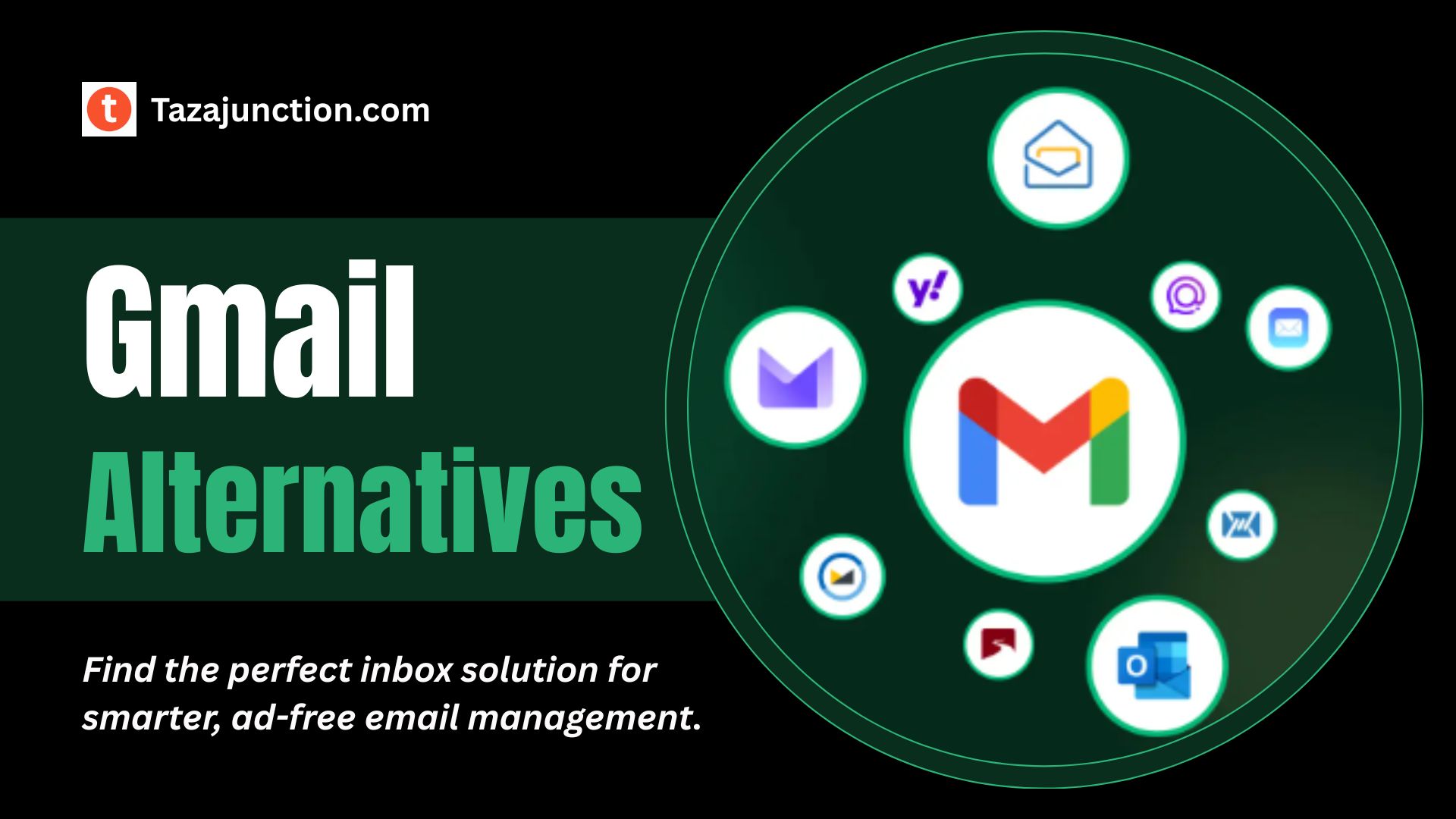
Gmail Alternatives: Ultimate List for a Smarter, Safer Inbox

gmail alternatives

In today’s world of data privacy concerns, targeted advertising, and inbox overload, many users are reconsidering their default email platforms.

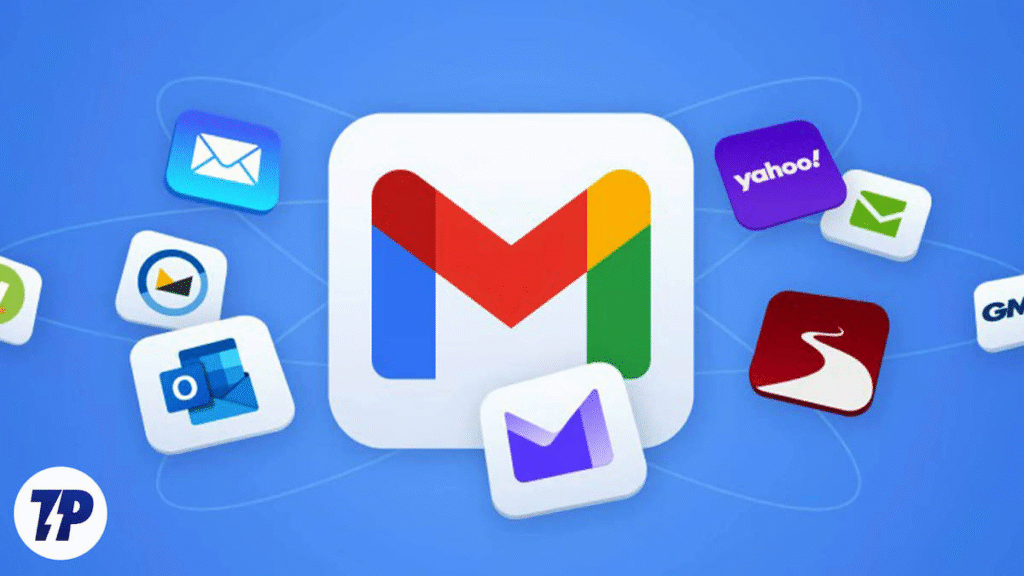
While Gmail remains one of the most widely used email services globally, more and more people are seeking Gmail alternatives that offer better privacy, more customization, or simply a clutter-free experience.

Whether you’re looking for enhanced encryption, ad-free interfaces, or productivity-focused tools, this TazaJunction.com comprehensive guide will help you find the best Gmail alternatives for a smarter and safer inbox.


Why Look for Gmail Alternatives?

Before diving into the ultimate list, it’s important to understand why so many people are switching to Gmail alternatives. Here are some of the top reasons:

  • Privacy concerns: Gmail is known to scan your emails for data to personalize ads.
  • Too many ads: Even the inbox can feel commercial.
  • Lack of customization: Gmail’s interface and folder system aren’t flexible for all users.
  • Centralized control: Being tied to a Google account gives Google access to a wide range of personal data.

Fortunately, there are many Gmail alternatives that respect your privacy, offer advanced features, and still maintain user-friendly designs.

Whether you’re organizing a budget, managing a team project, or analyzing data for reports, learning just a few basic Google Sheets formulas can save you time and frustration.


List of Top Gmail Alternatives

image 46

1. Proton Mail – The Privacy Champion

If privacy is your main concern, Proton Mail stands out among Gmail alternatives. Based in Switzerland, it follows strict privacy laws and offers end-to-end encryption. Proton Mail doesn’t require personal information to sign up, and even its free tier offers robust features.

Highlights:

  • End-to-end encryption
  • No ads or data tracking
  • Open-source and secure
  • Works with custom domains

This is one of the best Gmail alternatives for users who value confidentiality and digital security above all else.


2. Tutanota – Encrypted and Open Source

Tutanota is another excellent choice among Gmail alternatives, especially for users looking for a completely open-source solution. Tutanota encrypts emails, contacts, and even your calendar data, ensuring maximum protection.

Highlights:

  • Automatically encrypts emails and metadata
  • Custom domain support
  • Anonymous sign-up
  • Mobile and desktop apps

Its ad-free environment and high privacy standards make it a favorite among digital privacy advocates.


3. Zoho Mail – For Business and Professionals

If you’re looking for Gmail alternatives tailored to professional use, Zoho Mail is a powerful option. With tools designed for teams and businesses, it combines email with calendar, tasks, notes, and even CRM functionality.

Highlights:

  • Custom domains and business email
  • Integrated office suite
  • Ad-free, even on free plans
  • Strong admin controls

It’s one of the most feature-rich Gmail alternatives for startups, remote teams, and entrepreneurs.


4. Outlook.com – The Microsoft Ecosystem

For users already embedded in the Microsoft ecosystem, Outlook.com is a logical and seamless switch. With a familiar interface and excellent integration with Office apps, it provides a solid alternative to Gmail.

Highlights:

  • Smart inbox organization
  • Integration with Word, Excel, OneDrive
  • Customizable rules and filters
  • Focused Inbox for priority emails

While it’s not the most privacy-centered among Gmail alternatives, it offers robust productivity tools and enterprise-grade stability.


5. Mailfence – Privacy Meets Practicality

Mailfence offers a great balance between privacy and productivity. Based in Belgium, it adheres to strict European privacy laws while still offering the features that users expect from a modern email platform.

Highlights:

  • Built-in document storage and calendar
  • End-to-end encryption (optional)
  • Digital signature support
  • Collaboration tools

As Gmail alternatives go, Mailfence is ideal for users who want privacy but also need to get work done efficiently.


6. Fastmail – Clean, Fast, and Focused

If you’re tired of bloated inboxes and clunky interfaces, Fastmail may be the clean, minimalist solution you’re looking for. While it doesn’t offer end-to-end encryption, it’s still considered one of the more privacy-conscious Gmail alternatives out there.

Highlights:

  • Ultra-fast performance
  • No ads or third-party tracking
  • Custom folder rules and tags
  • Supports custom domains

Fastmail’s commitment to user control and speed makes it a go-to for power users.


7. StartMail – From the Creators of Startpage

StartMail, developed by the team behind the privacy-focused Startpage search engine, is one of the most secure Gmail alternatives. It offers strong encryption and emphasizes anonymity.

Highlights:

  • Disposable email aliases
  • PGP encryption support
  • No data sharing or advertising
  • Hosted in the Netherlands under strict privacy laws

StartMail is great for users looking to reduce spam, remain anonymous, and avoid being tracked online.


8. GMX Mail – Free and Feature-Rich

Looking for Gmail alternatives that don’t limit features behind a paywall? GMX Mail is a lesser-known but surprisingly robust free email service. It offers a generous amount of storage and even allows large attachments up to 50MB.

Highlights:

  • Up to 65GB of storage
  • Online calendar and file storage
  • Spam and virus protection
  • Free mobile apps

It may not be as polished as Gmail or Outlook, but it’s more than capable as a daily email driver.


9. iCloud Mail – Apple’s Answer to Gmail

If you’re an iPhone or Mac user, iCloud Mail integrates seamlessly into your ecosystem. Though not widely promoted, it is a stable and ad-free alternative for Apple fans.

Highlights:

  • Clean interface
  • Great Apple integration
  • Supports custom domains with iCloud+
  • No ad targeting

While not perfect, iCloud Mail is a simple, elegant, and private choice among Gmail alternatives for Apple loyalists.


10. Posteo – Ethical, Green, and Private

Posteo stands out not just for its privacy features but also for its ethical stance. It’s a green email provider that runs on 100% renewable energy and is independently funded.

Highlights:

  • Anonymous signup
  • Fully encrypted mailbox
  • No ads, no tracking
  • Eco-conscious company policies

If your values align with digital ethics and sustainability, Posteo might be one of the most aligned Gmail alternatives for your needs.


How to Choose the Right Gmail Alternative?

When deciding which email provider to switch to, consider these key factors:

  • Privacy: Does the provider track, scan, or share your data?
  • Storage: How much space do you get, and is it expandable?
  • Security: Is encryption offered? Are logins protected?
  • Interface: Is the UI clean, modern, and customizable?
  • Compatibility: Does it integrate with your apps and devices?

The best Gmail alternatives should not only address your pain points with Gmail but also improve your daily workflow and peace of mind.


Final Thoughts

In a world where personal data is increasingly treated as a commodity, making the switch to privacy-focused, user-first platforms is more important than ever. Fortunately, the rise of secure, ad-free, and efficient Gmail alternatives proves that you don’t have to settle for less.

Whether you prioritize encryption, productivity, design, or values, there’s an email service out there for you. Now is the perfect time to take control of your digital communication and find an inbox that truly works for you—not advertisers.

So, say goodbye to clutter and hello to control. These Gmail alternatives are your gateway to a smarter, safer inbox.

Discord Screen Share: How to Share Your Screen in Minutes

discord screen share

In today’s digital age, staying connected through voice, text, and video is more essential than ever. Whether you’re gaming with friends, hosting a study session, or collaborating on a project, Discord Screen Share is one of the platform’s most powerful and underrated features.

With just a few clicks, you can stream your entire desktop or a specific application window directly into a voice channel or direct message.

If you’re new to Discord or just haven’t used screen share before, this TazaJunction.com guide will walk you through everything you need to know about Discord Screen Share—from setup to troubleshooting—in a matter of minutes.


What is Discord Screen Share?

image 43

Discord Screen Share is a built-in feature that allows users to broadcast their screen to others in a voice or video chat. It’s available on both desktop and mobile versions of Discord (though desktop provides more robust functionality).

Whether you want to show off gameplay, explain a concept visually, or even watch a video with friends, screen sharing makes it easy and seamless.

Also you can explore ultimate guide to the best offline games you can enjoy on Android devices without an internet connection.


Why Use Discord Screen Share?

There are countless reasons to use Discord Screen Share, including:

  • Gaming: Show your gameplay in real-time without needing platforms like Twitch or YouTube.
  • Presentations: Perfect for virtual meetings or group study sessions.
  • Troubleshooting: Help a friend solve a tech problem by viewing their screen.
  • Entertainment: Watch videos, scroll through memes, or browse together.

With screen sharing, Discord becomes more than just a chat app—it becomes a collaborative digital space.


Requirements to Use Discord Screen Share

Before diving in, make sure your setup meets the following requirements:

1. Updated Discord App

Ensure you’re using the latest version of Discord on desktop (Windows, macOS, or Linux). The feature also works on Android and iOS with limited capabilities.

2. Microphone & Speakers

Though not mandatory, having a mic helps enhance communication during screen sharing sessions.

3. Permissions

If you’re in a server voice channel, you need the appropriate role or permission to share your screen. In private calls, anyone can screen share.

4. Hardware Acceleration (Optional)

Enabling hardware acceleration can improve performance during Discord Screen Share, especially when sharing games or high-resolution content.


How to Use Discord Screen Share on Desktop?

Let’s walk through how to get started with Discord Screen Share on your computer in a few easy steps.

Step 1: Join a Voice Channel or Start a DM Call

Open Discord and either:

  • Join a voice channel in a server, or
  • Start a private video call in Direct Messages

Once connected to audio, you’ll see screen sharing options appear.

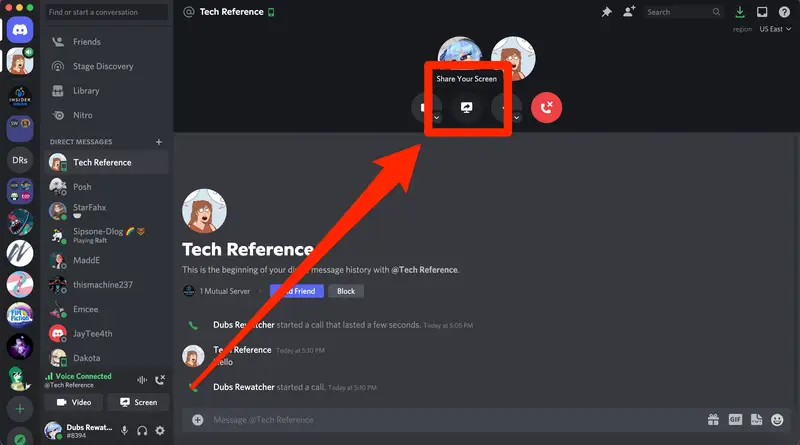
Step 2: Click the “Screen” Icon

image 44

Located near the bottom of your Discord window, next to the camera and mic buttons, is a screen icon labeled “Share Your Screen.” Click it to bring up screen sharing options.

Step 3: Choose What to Share

You’ll be presented with two main options:

  • Entire Screen: Share everything on your desktop.
  • Application Window: Share only a specific program (great for privacy or focus).

Select your desired option and click “Go Live”.

Step 4: Adjust Settings

While you’re sharing your screen, you can adjust:

  • Resolution (up to 1080p for standard users, higher for Nitro subscribers)
  • Frame Rate (30 FPS or 60 FPS for Nitro)
  • Audio Sharing (optional toggle to stream system audio)

You’re now live! Others in your call or channel can view your screen in real-time.


How to Use Discord Screen Share on Mobile?

While limited compared to desktop, Discord Screen Share on mobile still lets you share your phone’s screen.

Step 1: Open Discord App & Join a Voice or Video Call

Tap into a server voice channel or start a private call.

Step 2: Tap “Share Your Screen”

After joining, a screen share button will appear (it looks like a phone with an arrow). Tap it.

Step 3: Confirm Permissions

You’ll be prompted to allow screen recording. Tap Start Now to begin sharing.

Step 4: Navigate Freely

Anything you do on your phone will now be visible to others in the call, until you end the share.


Tips for a Smooth Discord Screen Share Experience

To get the most out of your Discord Screen Share, keep the following tips in mind:

1. Close Unnecessary Apps

Free up memory and reduce distractions by closing any apps you don’t need during sharing.

2. Disable Notifications

Turn on Do Not Disturb mode or disable notifications to avoid embarrassing pop-ups.

3. Use Push-to-Talk

If you’re not actively speaking, push-to-talk helps eliminate background noise while screen sharing.

4. Test Audio

If sharing audio, make sure to check levels beforehand. Sometimes system sound isn’t picked up correctly.

5. Use a Stable Internet Connection

A good connection is crucial to avoid lag or stuttering for viewers.


Common Issues and Fixes

Even though Discord Screen Share is user-friendly, you might run into a few hiccups. Here are the most common issues and how to resolve them.

Problem 1: Black Screen

Fix: Try disabling hardware acceleration in Discord settings under “Advanced.” Restart the app afterward.

Problem 2: No Audio During Screen Share

Fix: Make sure you’re sharing an application window that supports audio (like a browser or media player) and check the “Share audio” box when selecting the window.

Problem 3: Poor Video Quality

Fix: Check your internet connection. Also, make sure you’re not using battery-saving modes that may limit performance.

Problem 4: Screen Share Not Available

Fix: If the option doesn’t appear, ensure you’re on the latest version of Discord and that you’ve joined a voice call.


Screen Share Use Cases in Real Life

1. Gamers Streaming to Friends

Without going live on Twitch or YouTube, gamers can use Discord Screen Share to show off gameplay, get feedback, or just have fun with friends.

2. Remote Team Collaboration

Working remotely? You can present PowerPoints, demonstrate software tools, or walk through workflows right inside Discord.

3. Virtual Study Groups

Students are increasingly using Discord Screen Share to review lectures, work on problems together, or explain tough concepts.

4. Family Video Sessions

Want to show vacation photos or help a parent with their laptop? Screen sharing is great for connecting across generations.


Final Thoughts

The Discord Screen Share feature is a powerful, accessible tool for anyone who wants to communicate visually and in real time.

Whether you’re gaming, working, or simply hanging out, being able to instantly share your screen with others makes Discord more than just a chat platform—it becomes a virtual hangout space for all kinds of collaboration.

With this guide, you should now be able to use Discord Screen Share confidently and effectively. So the next time you need to show something, walk someone through a process, or just entertain, you’ll be ready to go live in seconds.

Honor Magic V Flip 2 Launch Date Set for August  21 – Design & Colour Options Revealed

honor magic v flip 2

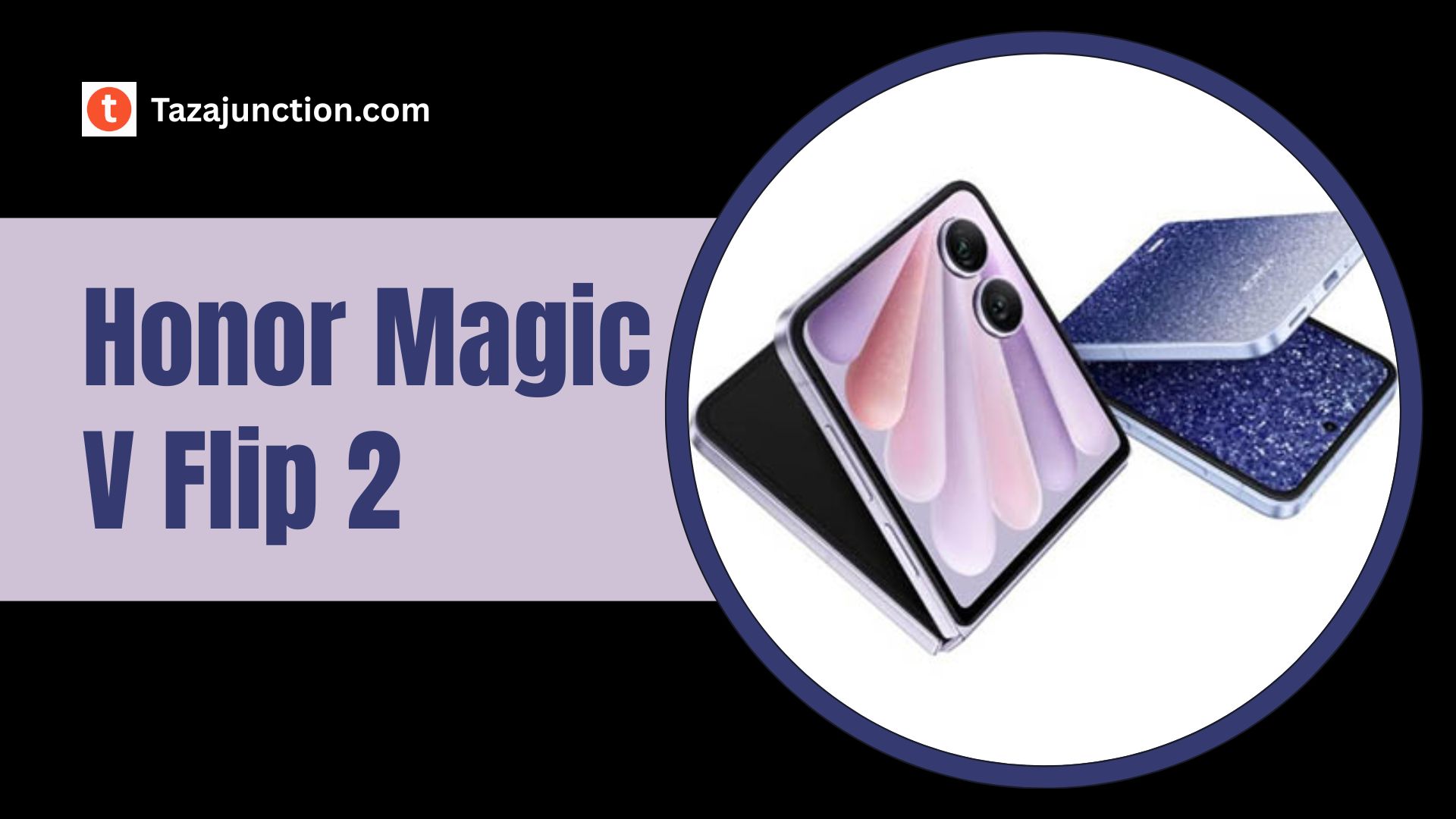
Exciting news is on the horizon for foldable phone enthusiasts in China. The Honor Magic V Flip  2 has officially been slated for launch on August 21, and Honor is already teasing its standout design and premium color options.

From fashion-forward finishes to upgraded battery life and display tech, the Honor Magic V Flip  2 is shaping up to be one of the most stylish and technically advanced clamshells of 2025.

Here’s a deeper look with TazaJunction.com at what’s being revealed ahead of the official unveiling—and why the Honor Magic V Flip 2 is already generating serious buzz.


Launch Details

The Honor Magic V Flip 2 is slated to debut in China on August 21, 2025, during an event expected to showcase its full features and pricing. Pre-orders have already begun, with early reservations starting around mid‑August and exclusive bundle offers available for early buyers.

Also, if you’re looking for innovation, performance, and versatility in one sleek package, the Samsung Galaxy Z Fold 7 is the foldable to beat in 2025.


Aesthetic Evolution: Elegant Design & Premium Colorways

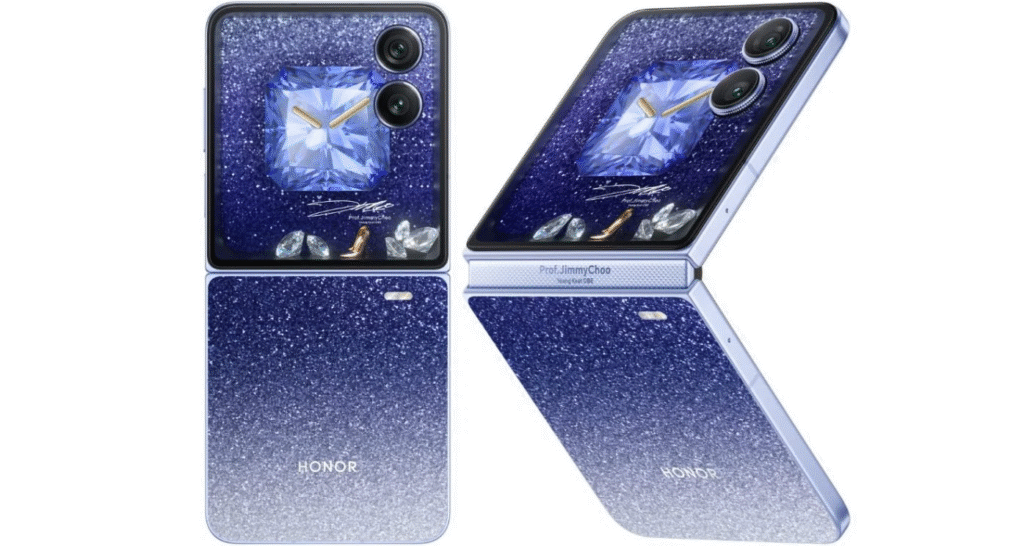
One of the most talked-about features of the Honor Magic V Flip  2 is its visual style. Honor has partnered with luxury fashion designer Jimmy Choo to craft a “starry‑night” inspired finish for the standout blue variant—complete with shimmering patterns and Jimmy Choo branding on the hinge.

But style isn’t limited to just one version: the Honor Magic V Flip  2 will also come in refined grey, marble-style purple, and sleek white versions, offering a range of aesthetic choices for buyers.

Moreover, the device maintains a compact clamshell profile with an improved dual-camera arrangement—featuring two identically sized rear lenses—and a redesigned rectangular metal frame that offers both elegance and structural strength.


Display Upgrades: Bigger, Smoother, Brighter

image 41

The Honor Magic V Flip 2 keeps the beloved 4-inch front (cover) display, perfect for quick interactions. Inside, a generously sized 6.8-inch LTPO OLED screen promises smoother visuals with adaptive refresh rates that enhance both gaming and general use.

This layout allows users to easily manage notifications, control music, or answer calls from the outer screen, then seamlessly unfold to dive into immersive content on the larger display.


Power & Performance Enhancements

An area where the Honor Magic V Flip 2 particularly stands out is battery capability. Honor is tipping a massive 5,500 mAh battery, the largest ever in a clamshell phone, paired with fast charging performance—reportedly up to 80W wired speed. That’s a significant leap for a compact foldable.

Performance-wise, leaks suggest Honor will deploy a Snapdragon 8s Gen 4 chipset—poised to offer flagship-level capabilities in a “sub-flagship” package that balances speed and efficiency.


Camera & Imaging

The Honor Magic V Flip 2 adopts a revamped dual-camera setup. Rather than a mismatched pair like its predecessor, both sensors are the same size—headed by a high-quality 50 MP main shooter with OIS—hinting at improved low-light performance and consistency across shots. This change not only upgrades photo quality but also enhances the device’s balance and symmetry.


Pre-Order Perks & Variants

Interested buyers in China can pre-order the Honor Magic V Flip 2 starting August 13, offering them early access and a special “Pet Gift Pack”—a themed accessory bundle. Storage configurations are expected to include:

  • 12GB RAM + 256GB
  • 12GB RAM + 512GB
  • A premium 16GB RAM + 1TB version, likely exclusive to the Jimmy Choo designer edition.

How the Magic V Flip 2 Compares?

In a rapidly growing foldable market, the Honor Magic V Flip  2 sets itself apart with:

  • Stylish finish and thoughtful designer collaborations
  • Massive battery capacity for all-day use
  • High refresh-rate, adaptive displays
  • A balanced camera design
  • Pre-order bundles that reward early birds

While brands like Samsung and other Chinese makers remain strong contenders, Honor is carving out a niche focused on fashion, practicality, and real-world performance.


Final Thoughts

The Honor Magic V Flip  2 is not just another foldable—it’s a statement. Launching August 21, it promises a rare combination of beauty, muscle, and battery life—all wrapped in a compact design.

For those seeking a foldable phone that blends art with innovation, the Honor Magic V Flip  2 could very well be the game‑changer of the year.

Vivo Vision Mixed Reality Headset Launches August 21 With Ultra Lightweight Design

vivo vision mixed reality headset

When Vivo unveiled its first-ever mixed reality (MR) headset—aptly named the Vivo Vision mixed reality headsettechnology enthusiasts instantly took notice.

Poised to launch in China on August 21 during Vivo’s annual imaging festival, this device promises a breakthrough in comfort and immersive interaction. Its standout selling point?

An ultra-lightweight design that aims to eliminate the neck fatigue common in MR headgear. With competitors like Apple’s Vision Pro and Meta Quest looming, can Vivo redefine the experience through sheer weight innovation?


A Sleek Debut at Boao Forum: First Glimpse of Vivo Vision Mixed Reality Headset

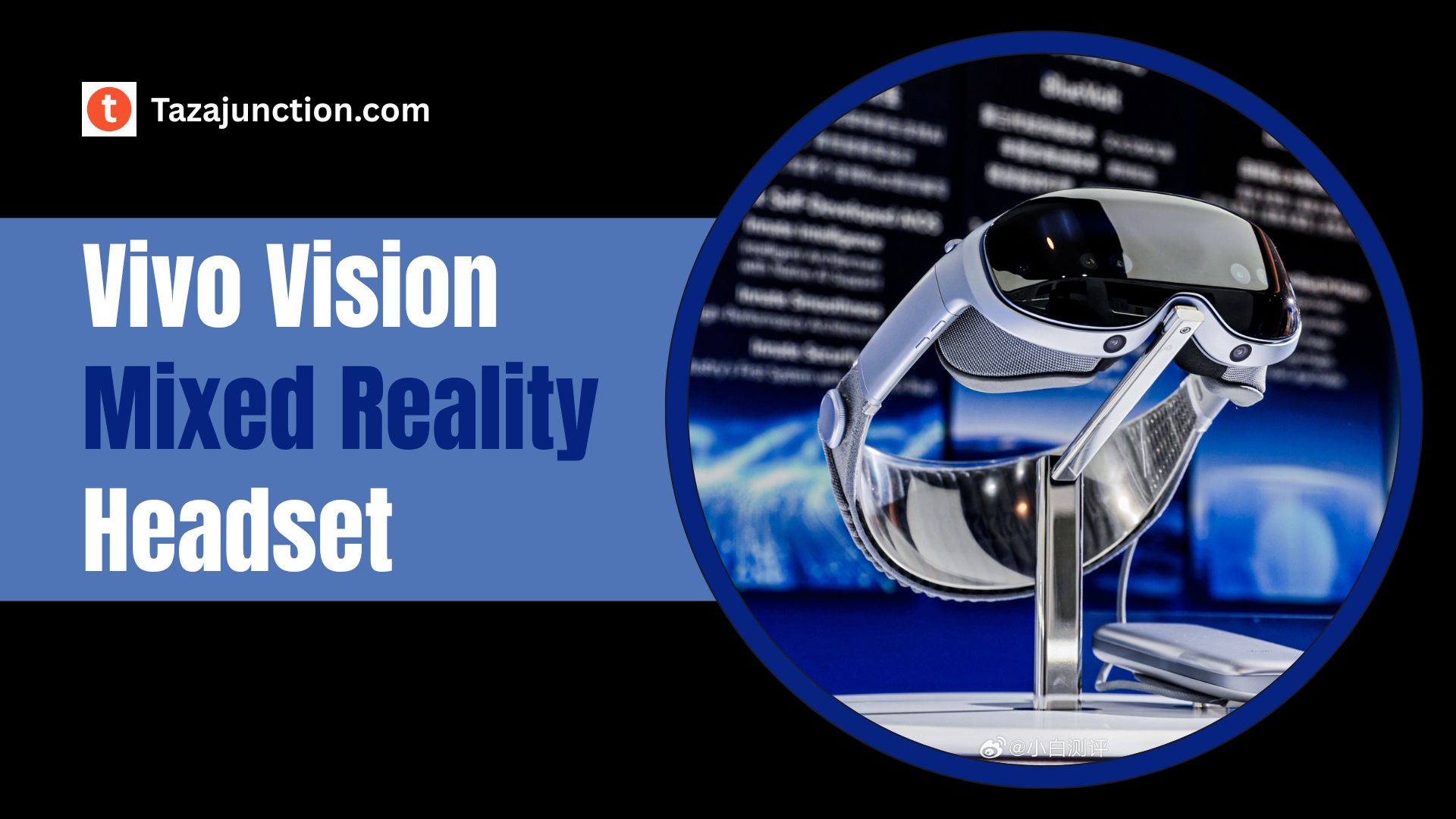
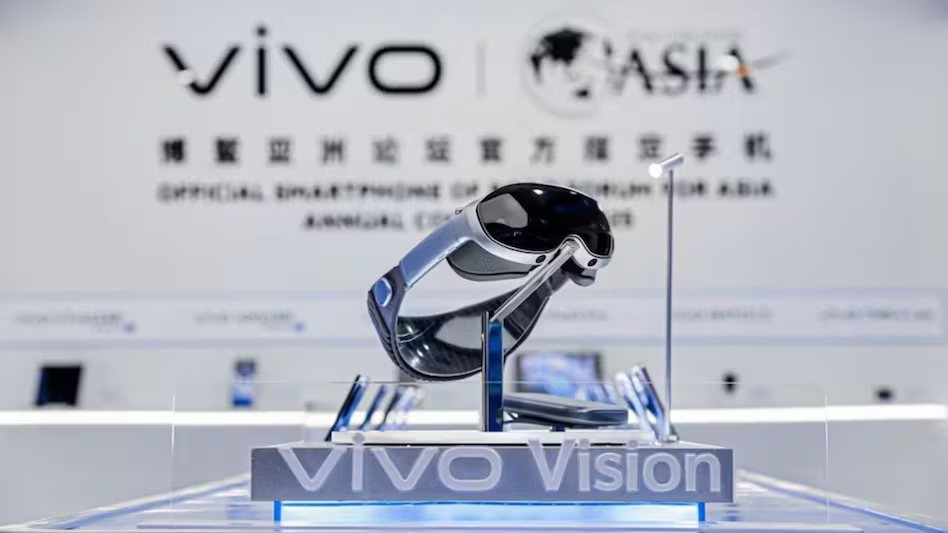
The Vivo Vision mixed reality headset debuted earlier this year at the Boao Forum for Asia, marking the company’s leap into AR and VR convergence.

Sporting a ski goggle-like visor and plush headband, the design closely mirrors Apple’s Vision Pro—yet Vivo claims its headset achieves unprecedented lightness, suggesting a more comfortable extended use.

The unveiling also synchronized with Vivo’s launch of its Blue Technology Matrix, hinting at AI-powered spatial computing and robotics ambitions embedded within the MR ecosystem.


Launch Details: August 21 Marks the Vivo Vision Mixed Reality Headset Reveal

image 39

Vivo has officially confirmed the launch timing: the Vivo Vision mixed reality headset will debut at 2:30 PM local time on August 21 in China, aligned with the company’s Imaging Festival.

Companies often open in-person experience zones for hands-on demos soon after, and Vivo plans to do just that—giving gamers and tech fans a chance to feel just how light and immersive this headset truly is.

Rather than a limited release, Vivo seems to be leaning into a longer-term demo-to-feedback loop, gathering real user impressions before mass rollout.


Ultra Lightweight Redefined

The “ultra-lightweight design” of the Vivo Vision mixed reality headset is more than marketing jargon—it’s central to its appeal. Vivo’s team emphasizes that the front of the headset feels as easy to wear as premium headphones, a monumental leap from heavier MR gear. This focus on ergonomics may well be the difference between a frustrating piece of tech and an everyday wearable.

In MR applications—from gaming to productivity—comfort can make or break the experience. Long sessions require a headset that doesn’t weigh you down—literally.


Gesture Control Built for Intuition

Vivo’s Product General Manager, Hong Yi, promises a gesture-controlled interface so natural it feels like physically grabbing virtual objects. Users will be able to look at elements and “grab” them with a gesture, bringing documents or virtual props to life mid-air.

This is not just novelty—it’s the kind of interaction that could unlock new creative workflows, immersive gaming, and futuristic productivity experiences.


Technical Foundations: Hints, Not Full Specs

While Vivo has kept details tight, the Vivo Vision mixed reality headset is expected to be powered by Qualcomm’s latest 4 nm Snapdragon variant, balancing performance and energy efficiency.

The large glass visor hints at high-resolution micro OLED panels, while the numerous sensors likely support robust hand tracking, gesture input, and spatial awareness.

What hardware lies beneath the visor won’t be fully revealed until—or just before—the launch, but industry buzz suggests a competitive package aimed squarely at high-end MR use.


Vivo’s Vision Goes Beyond Hardware

At Boao, Vivo also announced a Robotics Laboratory designed to integrate spatial computing, AI, imaging, and mixed reality into next-gen robotics. The Vivo Vision mixed reality headset isn’t just a standalone device; it’s part of a broader ecosystem where MR, AI, and robotics converge.

Think robots that can “see” and “think” using spatial data—guided, perhaps, by the same tech that powers your headset’s mixed reality capabilities.


Competitive Landscape: How Vivo Vision Stacks Up

image 40

In the growing MR market, key players include Apple Vision Pro, Meta Quest, and others. The Vivo Vision mixed reality headset sets itself apart with:

FeatureVivo Vision MR HeadsetCompetitors (e.g., Vision Pro)
DesignPaired-back, ski goggle visor & cushioned strapSimilar aesthetic, but generally heavier
WeightUltra-light, comparable to premium headphonesHeavier overall setup
InteractionGesture-based natural grabbingVoice, gestures, and direct touch
Launch StrategyDemo-first, festival revealOnline/offline preorders official release
Ecosystem IntegrationRobotics & AI integration via Blue MatrixApple focused on cohesive device ecosystem

Community Reaction: Eager Supporters and Skeptics Alike

Social media and forums reflect a mix of excitement and cautious optimism. Some users praise Vivo emphasis on weight and ergonomic improvements, calling it a possible game-changer for wearability.

Others remain skeptical, waiting to confirm if the actual build and battery life live up to hype. Either way, anticipation is high—and for good reason.


Future Potential and User Scenarios

If Vivo nails comfort, interaction, and AI convergence, the Vivo Vision mixed reality headset could shake up multiple domains:

  • Gaming: Lightweight, immersive, intuitive control could make MR a daily leisure choice.
  • Productivity: Hands-on virtual workspaces, drag-and-drop holograms, and gesture navigation redefine desktop environments.
  • Education and Creativity: AR-enhanced learning and creative collaboration become more practical in real-world classrooms.
  • Robotics: Developers gain real-time spatial tools for smart robots, VR-assisted training, and remote control systems.

Final Thoughts

With innovation at the core and launch set for August 21, the Vivo Vision mixed reality headset could redefine mainstream MR expectations. Its ultra-lightweight design and gesture-first interaction model suggest it’s designed to overcome the most common barrier of headset adoption: comfort.

Coupled with Vivo’s AI and robotics ambitions, this MR device isn’t just gear—it’s an entry point into intelligent, spatial computing.

If Vivo executes on comfort, control, and ecosystem synergy, this launch could mark the beginning of a new era in mixed reality.

Why Is YouTube Black Screen on TV – Causes & Fixes

youtube black screen

We’ve all been there—you fire up YouTube on your smart TV, but instead of smooth playback, you’re met with a black screen.

No error message, no audio, just darkness. It’s baffling, frustrating, and leaves you wondering, why is YouTube black screen on TV? The good news? This common issue has several well-documented causes, and even better—most have straightforward fixes.

Here’s a deep dive of TazaJunction.com into what causes it and how to get your videos playing again.


Common Causes of YouTube Black Screen on TV

1. Internet Connection Glitches

image 35

One of the most frequent reasons for a YouTube black screen on TV is simply an unstable or weak internet connection. If your Wi-Fi signal is spotty or bandwidth is maxed out, video content may fail to load properly, resulting in a black screen.

  • Fix: Restart your router, switch to a wired connection, or reduce the number of devices using bandwidth.

2. Outdated YouTube App or TV Firmware

The YouTube app and your TV’s operating system evolve rapidly. Compatibility often hinges on running the latest versions.

  • Fix: Navigate to your TV’s app settings to update the YouTube app and check the TV menu for system or firmware updates.

3. Corrupt App Cache or Data

Over time, cached files can become corrupted, triggering a YouTube black screen on TV when playback is attempted.

  • Fix: Clear cache (or cache and data) for the YouTube app. On most Android TVs, this is housed in Settings → Apps → YouTube → Clear Cache/Data.

4. Temporary System Glitch

Sometimes, a minor system or app glitch can trigger playback errors.

  • Fix: Power cycle the TV. Unplug it for about a minute, press and hold the power button, then plug it back in and restart.

5. HDMI or External Device Conflicts

image 36

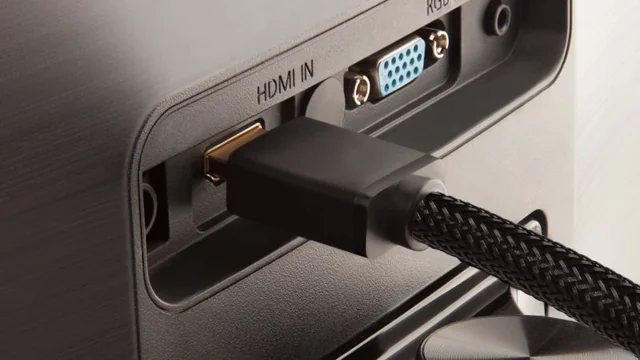
If you’re using a streaming device or console to run YouTube, a poor HDMI connection or incompatible input can cause the black screen.

  • Fix: Confirm the HDMI cable is firmly connected and test a different port or cable if necessary.

6. HDR or Frame Rate Mismatch

Smart TVs with HDR and dynamic frame rate can sometimes struggle when the content format switches (e.g., video to ad). This transition can trigger brief blackouts or no output at all.

  • Fix: Disable dynamic HDR switching or set output to SDR/standard frame rate to ensure smoother transitions.

7. VPN or Ad-Blocking Interference

Using ad blockers, custom filters, or VPNs can inadvertently block portions of YouTube’s content or disrupt streaming.

  • Fix: Temporarily disable any VPN or ad-blocking apps and test if playback improves.

8. Account or Device Overload

YouTube might limit playback if your account is signed in on too many devices or shows conflicting region settings.

  • Fix: Log out and log back in, or remove extra devices associated with your account via account settings.

9. YouTube Server Issues

On rare occasions, the fault lies with YouTube or your ISP—service outages or server issues can disrupt streaming for everyone.

  • Fix: Check public outage trackers or try other devices to confirm if it’s widespread.

Step-by-Step Fixes for YouTube Black Screen on TV

1. Power Cycle Your TV

Turn off and unplug the TV for at least 60 seconds. Press and hold the power button before turning it back on to clear memory and refresh app behavior.

2. Update Both YouTube App and TV Firmware

image 38

Go to your TV’s settings:

  • Update YouTube via the app section.
  • Look for system updates under Settings → Support or System Update.

3. Clear App Cache/Data

On Android TVs:

  • Settings → Apps → YouTube → Clear Cache/Data.

On other platforms:

  • Locate similar app or storage management settings to reset app data.

4. Check Your Network

Run an internet speed test—aim for at least 3 Mbps for standard def and upwards of 20 Mbps for HD/4K. If underperforming:

  • Restart the router.
  • Consider upgrading your internet plan or setting up Ethernet.

5. Swap HDMI Ports or Reset External Device

Ensure solid, damage-free HDMI connections, and try alternate ports. Reboot or reset any connected streaming devices like Roku, Fire Stick, or Apple TV.

6. Adjust HDR or Frame Rate Settings

In your TV display settings:

  • Disable automatic HDR switching or continuous dynamic range matching.
  • Force display settings like SDR or fixed 60Hz output to minimize blackouts between content types.

7. Re-login to Your YouTube Account

Log out within the YouTube TV app or settings, then sign back in. This can clear credential-based hiccups.

8. Remove Internally Conflicting Apps

Third-party apps like Twitch may interfere with YouTube. If problems started after installing a specific app, try uninstalling or force-stopping it.

9. Reinstall YouTube App

If problems persist:

  • Uninstall the YouTube app.
  • Restart the TV.
  • Reinstall from your platform’s app store.

Why This Fix Journey Matters?

At its core, YouTube black screen on TV isn’t comforting—it disrupts your expectations of smooth entertainment. But with the right troubleshooting steps, you can often resolve it without stress. Whether it’s a cache hang-up, silent HDR blip, or errant VPN, fixes are usually in reach.

These steps reinforce the importance of maintaining smart TV ecosystems—keeping software updated, cleaning out temporary data, and ensuring hardware compatibility all build toward a reliable streaming experience.


Final Thoughts

Getting a YouTube black screen on TV can be unnerving, but most causes—from connectivity woes and cache errors to HDR toggles and app conflicts—can be tackled methodically.

Start simple with a power cycle or update and move toward network and display adjustments only when needed. If YouTube is still stuck in black, consider contacting your TV manufacturer or app platform for deeper support.

Streaming should be simple. With this guide, your YouTube sessions will stay bright again.