How to Create and Use Quick Notes iPhone: A Complete Guide

quick notes iphone

Apple’s Notes app has always been a handy tool for jotting down ideas, but with the introduction of Quick Notes, iPhone users now have an even faster way to capture thoughts, links, and reminders without breaking their workflow.

Whether you’re browsing the web, reading an email, or simply struck by inspiration, knowing How to Create and Use Quick Notes iPhone can make your digital life more organized and efficient.

In this Tazajunction.com guide, we’ll explore what Quick Notes are, how to set them up, and the many ways you can use them to boost productivity.

What Are Quick Notes?

Before diving into How to Create and Use Quick Notes iPhone, it’s important to understand what they are. Quick Notes are a feature that lets you create a note instantly from anywhere on your device.

You don’t have to open the Notes app manually — instead, you can trigger a Quick Note through gestures, Control Center, or supported apps.

Quick Notes are synced across your Apple devices via iCloud, so a note you start on your iPhone can be continued on your iPad or Mac. This seamless integration makes them perfect for capturing fleeting ideas before they slip away.

Setting Up Quick Notes

Quick Notes iPhone

The first step in mastering How to Create and Use Quick Notes iPhone is enabling the feature in your settings.

  1. Open Settings on your iPhone.
  2. Scroll down and tap Control Center.
  3. Under “More Controls,” find Quick Note and tap the green plus icon to add it.
  4. Now, Quick Note will appear in your Control Center for easy access.

You can also enable gesture‑based access if your device supports it, such as swiping up from the bottom‑right corner of the screen.

Creating a Quick Note

Once you’ve set it up, learning How to Create and Use Quick Notes iPhone is straightforward.

  • From Control Center: Swipe down from the top‑right (or up from the bottom on older models) to open Control Center, then tap the Quick Note icon.
  • From Supported Apps: In apps like Safari, tap the share icon, then choose “Add to Quick Note.” This will automatically include a link back to the page you’re viewing.
  • Using Gestures: On compatible devices, swipe up from the bottom‑right corner to open a Quick Note instantly.

When the Quick Note window appears, you can type text, paste links, or even add images. Tap “Save” when you’re done, and it will be stored in the Quick Notes folder in the Notes app.

Adding Content to Quick Notes

A big part of How to Create and Use Quick Notes iPhone is knowing what you can include. Quick Notes aren’t limited to plain text — you can enrich them with:

  • Links: Perfect for saving articles or resources you want to revisit.
  • Images: Add photos from your library or take a new one on the spot.
  • Tags: Use hashtags to organize notes by topic.
  • Mentions: Tag people in shared notes for collaboration.

These features make Quick Notes a versatile tool for everything from research to trip planning.

Organizing Your Quick Notes

As you learn How to Create and Use Quick Notes iPhone, you’ll likely accumulate a lot of them. Organization is key to keeping them useful.

  • Folders: All Quick Notes are stored in a dedicated folder in the Notes app. You can move them to other folders if needed.
  • Search: Use the search bar in Notes to find specific Quick Notes by keyword.
  • Tags: Adding tags makes it easier to group related notes without moving them.

Remember, if you move a Quick Note to another folder, it becomes a standard note and will no longer appear as a Quick Note overlay in apps.

Using Quick Notes for Productivity

image 217

One of the best things about How to Create and Use Quick Notes iPhone is how it can streamline your workflow.

  • Research: While browsing in Safari, highlight text and add it to a Quick Note. The note will remember the source and link back to it.
  • Task Lists: Jot down to‑dos without leaving your current app.
  • Meeting Notes: Capture key points during a call or video meeting without switching apps.
  • Creative Ideas: Record inspiration for writing, art, or projects the moment it strikes.

Syncing Across Devices

A major advantage of learning How to Create and Use Quick Notes iPhone is that your notes sync via iCloud. This means:

  • Start a Quick Note on your iPhone and finish it on your iPad.
  • Access your Quick Notes on your Mac for deeper editing.
  • Keep everything up to date automatically without manual transfers.

This cross‑device functionality ensures your ideas are always within reach.

Customizing Quick Notes

Part of mastering How to Create and Use Quick Notes iPhone is making the feature your own.

  • Change Appearance: Adjust text size, font, and background color in the Notes settings.
  • Use Drawing Tools: Add sketches or handwritten notes with your finger or Apple Pencil (on compatible devices).
  • Pin Important Notes: Keep crucial Quick Notes at the top of your list for easy access.

Security and Privacy

When exploring How to Create and Use Quick Notes iPhone, it’s worth noting that Quick Notes themselves can’t be locked unless you move them to another folder. If you need to secure sensitive information, transfer the note to a standard folder and apply a lock.

Troubleshooting Quick Notes

If you run into issues while figuring out How to Create and Use Quick Notes iPhone, try these tips:

  • Update iOS: Make sure your device is running the latest version of iOS.
  • Check iCloud Settings: Ensure Notes syncing is enabled in your iCloud settings.
  • Restart Your Device: A simple restart can resolve minor glitches.
  • Re‑enable in Control Center: If the icon disappears, add it back via Settings.

Why Quick Notes Are a Game‑Changer?

The reason so many users are eager to learn How to Create and Use Quick Notes iPhone is that it removes friction from the note‑taking process.

Instead of breaking your flow to open an app, you can capture information instantly and return to what you were doing. This makes Quick Notes ideal for busy professionals, students, and anyone who values efficiency.

Final Thoughts

Mastering How to Create and Use Quick Notes iPhone can transform the way you capture and organize information. From setting it up in Control Center to adding rich content and syncing across devices, Quick Notes are a powerful yet simple tool.

By integrating them into your daily routine, you’ll be able to save ideas, tasks, and resources the moment they come to mind — and find them easily when you need them.

Whether you’re researching, planning, or just jotting down a passing thought, Quick Notes ensure nothing slips through the cracks.

Now that you know How to Create and Use Quick Notes iPhone, you can make the most of this feature and keep your digital life more organized than ever.


10 Best Anime Websites – Stream Your Favorite Shows Anytime

best anime websites

Anime has become a global phenomenon, captivating audiences with its unique storytelling, vibrant art styles, and diverse genres.

From action‑packed shonen adventures to heartwarming slice‑of‑life tales, there’s something for everyone. With so many entertainment streaming platforms available today, finding the right place to watch can be overwhelming.

That’s why we’ve compiled the Top 10 Best Anime Websites to Watch Your Favorite Shows, ensuring you have access to high‑quality, legal, and reliable sources for your anime fix.

Best Anime Websites to Watch Your Favorite Shows

1. Crunchyroll

image 205

No list of the Top 10 Best Anime Websites to Watch Your Favorite Shows would be complete without Crunchyroll. Known as one of the largest anime streaming platforms in the world, Crunchyroll offers thousands of episodes across a wide range of genres.

It’s especially popular for simulcasts — episodes released shortly after they air in Japan. With both free (ad‑supported) and premium (ad‑free) tiers, it caters to casual viewers and hardcore fans alike.

Why It’s Great

  • Massive library of subbed anime
  • Simulcasts keep you up to date
  • Available on multiple devices

2. Funimation

image 206

Funimation is another heavyweight in the anime streaming world, particularly for fans who prefer dubbed content.

As part of the Top 10 Best Anime Websites to Watch Your Favorite Shows, Funimation boasts an extensive catalog of English‑dubbed anime alongside subbed versions. It’s home to many popular titles and offers exclusive content you won’t find elsewhere.

Why It’s Great

  • Extensive dubbed anime selection
  • Exclusive licensing deals
  • User‑friendly interface

3. Netflix

image 207

While Netflix is known for its vast library of movies and TV shows, it has steadily grown into a major player in anime streaming.

As one of the Top 10 Best Anime Websites to Watch Your Favorite Shows, Netflix offers a mix of classic series, blockbuster films, and original anime productions. Its investment in anime originals like Castlevania and Yasuke has made it a go‑to platform for unique content.

Why It’s Great

  • High‑quality streaming in HD and 4K
  • Original anime productions
  • Global availability

4. Hulu

image 209

Hulu earns its spot in the Top 10 Best Anime Websites to Watch Your Favorite Shows thanks to its diverse anime catalog. It offers a mix of popular series, hidden gems, and even some exclusive titles.

Hulu’s subscription also gives you access to a wide range of non‑anime content, making it a versatile choice for households with varied tastes.

Why It’s Great

  • Wide variety of anime genres
  • Affordable subscription bundles
  • Easy integration with live TV options

5. HIDIVE

image 210

HIDIVE is a niche but growing platform that caters to dedicated anime fans. As part of the Top 10 Best Anime Websites to Watch Your Favorite Shows, HIDIVE offers unique titles, including older series and lesser‑known gems that aren’t available on bigger platforms. It’s also known for its customizable subtitle options and simulcasts.

Why It’s Great

  • Rare and exclusive titles
  • Affordable subscription price
  • Customizable viewing experience

6. 9anime

image 211

For those seeking a vast selection of anime, 9anime is a popular choice. It’s included in the Top 10 Best Anime Websites to Watch Your Favorite Shows for its extensive library, which spans from the latest releases to classic favorites. The platform offers multiple streaming servers, ensuring you can find a working link even during peak hours.

Why It’s Great

  • Huge anime library
  • Multiple streaming options
  • Fast updates with new episodes

7. Anime‑Planet

image 212

Anime‑Planet is unique among the Top 10 Best Anime Websites to Watch Your Favorite Shows because it combines streaming with a robust community platform.

Users can track what they’ve watched, create custom lists, and get recommendations based on their preferences. It also partners with legal streaming services to offer free, ad‑supported anime.

Why It’s Great

  • Integrated community features
  • Personalized recommendations
  • Legal, ad‑supported streaming

8. Tubi

image 213

Tubi is a free, ad‑supported streaming service that has steadily expanded its anime offerings. As one of the Top 10 Best Anime Websites to Watch Your Favorite Shows, Tubi provides a mix of classic and modern anime without requiring a subscription. It’s a great option for budget‑conscious viewers.

Why It’s Great

  • 100% free to use
  • Decent selection of anime titles
  • Available on most devices

9. AnimeLab (Australia/New Zealand)

image 214

For viewers in Australia and New Zealand, AnimeLab is a top contender in the Top 10 Best Anime Websites to Watch Your Favorite Shows.

It offers simulcasts, dubbed and subbed content, and a clean, easy‑to‑navigate interface. AnimeLab is known for its strong selection of both mainstream hits and niche titles.

Why It’s Great

  • Region‑specific licensing deals
  • High‑quality streams
  • Simulcasts available

10. AnimeDao

image 215

Rounding out the Top 10 Best Anime Websites to Watch Your Favorite Shows is AnimeDao, a platform praised for its fast loading times and minimal buffering.

It offers a wide range of anime, from ongoing series to completed classics, and is known for its clean interface and reliable streaming.

Why It’s Great

  • Smooth streaming experience
  • Simple, ad‑light interface
  • Large selection of titles

How to Choose the Right Anime Website for You?

With so many options in the Top 10 Best Anime Websites to Watch Your Favorite Shows, how do you decide which one to use? Here are a few factors to consider:

  • Content Library: Does it have the shows you want to watch?
  • Sub vs. Dub: Do you prefer subtitles or dubbed audio?
  • Price: Are you looking for free options or willing to pay for premium features?
  • Device Compatibility: Can you watch on your preferred device?
  • Legal and Safe: Is the site legitimate and free from harmful ads or malware?

While it may be tempting to use unofficial sources, sticking to the Top 10 Best Anime Websites to Watch Your Favorite Shows ensures you’re supporting the creators and the industry.

Legal streaming platforms pay licensing fees that help fund future anime productions. Plus, they offer better video quality, reliable subtitles, and a safer browsing experience.

Final Thoughts

The anime landscape in 2025 is richer and more accessible than ever. Whether you’re a casual viewer or a die‑hard fan, the Top 10 Best Anime Websites to Watch Your Favorite Shows offer something for everyone.
From the massive libraries of Crunchyroll and Netflix to the niche selections on HIDIVE and Anime‑Planet, there’s no shortage of ways to enjoy your favorite series.

By choosing the right platform, you can ensure a smooth, enjoyable viewing experience while supporting the creators who bring these incredible stories to life.

So grab your snacks, find your next binge‑worthy series, and dive into the vibrant world of anime.

PS Plus is Losing 4 Games in October 2025: What Subscribers Need to Know

ps plus is losing 4 games

The PlayStation Plus subscription service continues to evolve, with new games arriving each month and others leaving to make room for fresh additions.

This rotating library keeps the catalog dynamic, but it also means that some fan‑favorite titles eventually depart. PS Plus is Losing 4 Games in October 2025, and subscribers who haven’t yet tried them will want to act fast before they disappear from the service.

In this TazaJunction.com article, we’ll break down which games are leaving, why they’re worth playing, and how their removal fits into Sony’s broader content strategy for PlayStation Plus.

The Four Games Leaving in October

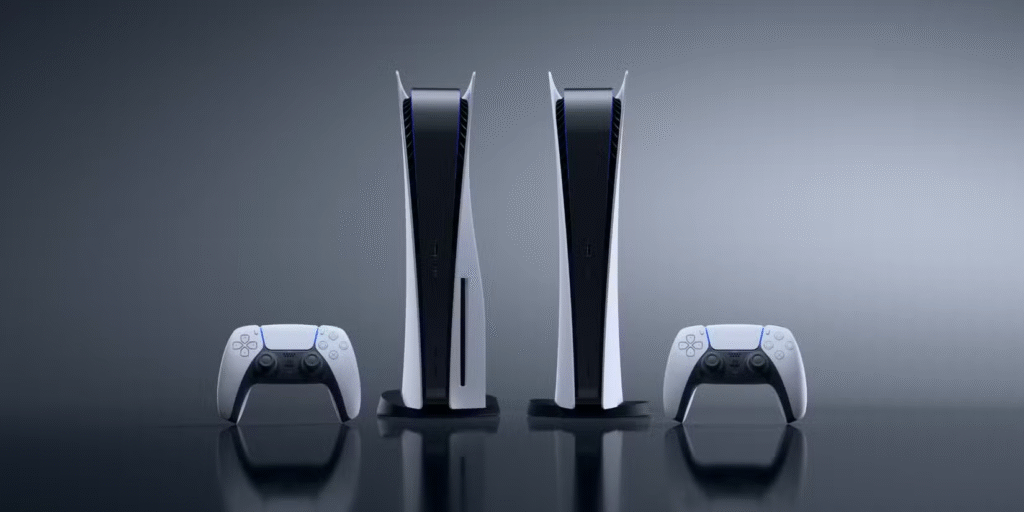
Sony has confirmed that PS Plus is Losing 4 Games in October 2025, with the removal date set for October 21. The titles leaving the Extra and Premium tiers are:

  • Battlefield 1 (PS4)
  • Ghostbusters: Spirits Unleashed (PS4, PS5)
  • Tour de France 2023 (PS4, PS5)
  • The Last Clockwinder (PS VR2)

Each of these games offers a unique experience, and their departure will leave a noticeable gap in the catalog’s variety.

1. Battlefield 1

Released in 2016, Battlefield 1 took the long‑running shooter franchise into the trenches of World War I. Its large‑scale multiplayer battles, immersive historical setting, and cinematic single‑player campaign earned it critical acclaim.

With Battlefield 6 launching just days before these removals, the timing of its departure makes sense — but it’s still bittersweet for fans. For many, the fact that PS Plus is Losing 4 Games in October 2025 means saying goodbye to one of the most atmospheric shooters of the last decade.

2. Ghostbusters: Spirits Unleashed

An asymmetrical multiplayer game, Ghostbusters: Spirits Unleashed pits a team of Ghostbusters against a single player‑controlled ghost. It’s a fun, chaotic experience that captures the humor and charm of the beloved film franchise.

Its removal right before Halloween feels ironic, as it’s the perfect spooky‑season title. This is one of the more surprising losses as PS Plus is Losing 4 Games in October 2025, especially for players who enjoy seasonal, themed gaming sessions.

3. Tour de France 2023

For sports simulation fans, Tour de France 2023 offers a detailed and realistic cycling experience. Players can compete in the iconic race, manage stamina, and strategize for long‑distance stages.

While it’s a niche title, it adds diversity to the PS Plus lineup. Its departure as part of the announcement that PS Plus is Losing 4 Games in October 2025 will be felt by those who appreciate variety beyond shooters and action games.

4. The Last Clockwinder

A puzzle‑driven VR title for PlayStation VR2, The Last Clockwinder tasks players with creating clones of themselves to automate tasks and solve intricate challenges. It’s a relaxing yet mentally engaging experience that showcases the potential of VR gaming.

Losing it means fewer VR‑exclusive options for Premium subscribers, another reminder that PS Plus is Losing 4 Games in October 2025 affects multiple genres and platforms.

Why Games Leave PS Plus?

PS Plus is Losing 4 Games

The rotation of titles is a core part of how PlayStation Plus operates. Licensing agreements between Sony and game publishers typically have set durations.

Once those agreements expire, games are removed unless both parties agree to extend the deal. This is why PS Plus is Losing 4 Games in October 2025 — it’s simply the end of their current licensing period.

While it can be disappointing, this system also allows Sony to bring in fresh content regularly. The constant refresh keeps the service appealing to both new and long‑time subscribers.

How to Make the Most of the Remaining Time?

If you’re interested in any of the departing titles, now is the time to prioritize them. Here are some tips for getting the most out of them before October 21:

  1. Download Now – Even if you don’t plan to play immediately, adding them to your library ensures you can access them until they’re removed.
  2. Focus on Short Campaigns – Games like The Last Clockwinder can be completed in a few sessions, making them perfect for a quick playthrough.
  3. Join Multiplayer Sessions – For Battlefield 1 and Ghostbusters: Spirits Unleashed, the community will likely be more active in the weeks before removal.
  4. Experiment with Modes – Try different game modes or difficulty settings to experience more variety before they’re gone.

Remember, PS Plus is Losing 4 Games in October 2025, so time is limited.

The Impact on Subscribers

When PS Plus is Losing 4 Games in October 2025, the immediate impact is a reduction in the number of available titles. However, the broader effect is on the diversity of the catalog. Losing a mix of FPS, multiplayer, sports simulation, and VR puzzle games means fewer options for players with varied tastes.

On the flip side, these removals often coincide with new additions. Sony typically announces the next wave of games shortly after confirming departures, so subscribers can look forward to fresh experiences replacing the outgoing titles.

The Broader PS Plus Strategy

image 202

Sony’s approach to PlayStation Plus is to keep the library dynamic and appealing. By rotating games, they can spotlight different genres, publishers, and playstyles. The fact that PS Plus is Losing 4 Games in October 2025 is part of this ongoing strategy.

This model also encourages players to try games they might otherwise overlook. Knowing a title will only be available for a limited time can motivate subscribers to explore it before it’s gone.

Community Reactions

The PlayStation community has had mixed reactions to the news that PS Plus is Losing 4 Games in October 2025. Some players are disappointed to see favorites like Battlefield 1 and Ghostbusters: Spirits Unleashed leave, while others are more focused on what new games will replace them.

On social media, there’s been particular frustration about losing Ghostbusters so close to Halloween. Many feel it would have been better to keep it through October to capitalize on the seasonal theme.

Looking Ahead

While PS Plus is Losing 4 Games in October 2025, the service will continue to evolve. Sony has been adding high‑profile releases, indie gems, and classic titles to keep the catalog fresh. The upcoming months will likely bring new surprises, and the departure of these four games will make room for whatever’s next.

For now, the best approach is to enjoy the departing titles while they’re still available. Whether you’re storming the trenches in Battlefield 1, busting ghosts with friends, racing through the French countryside, or solving VR puzzles, there’s still time to make the most of them.

Final Thoughts

The news that PS Plus is Losing 4 Games in October 2025 is a reminder of the ever‑changing nature of subscription services.

While it’s always tough to say goodbye to beloved titles, the rotation system ensures that there’s always something new to discover. For subscribers, the key is to stay informed, plan your play sessions, and take advantage of the variety while it lasts.

If you haven’t yet tried the departing games, now’s your chance. Once they’re gone, they may not return for a long time — if ever.
So grab your controller, dive in, and enjoy these experiences before the clock runs out.

10 Nano Banana Pro Prompts to Catch Onto the Viral AI Trend on Google Gemini

nano banana pro prompts

The AI world moves fast, and every once in a while, a quirky yet powerful trend takes over the internet. Right now, Nano Banana Pro prompts are going viral, especially among Google Gemini users who are exploring new ways to generate creative, fun, and useful AI outputs.

If you’re curious about what these prompts are, how to use them, and why everyone is talking about them, you’re in the right place.

In this TazaJunction.com article, we’ll break down 10 of the most effective Nano Banana Pro prompts to help you tap into the trend, boost your creativity, and get the most out of your AI experience.

Whether you’re a content creator, marketer, student, or just someone who loves experimenting with AI, these prompts can inspire your imagination while giving you practical results.


What Are Nano Banana Pro Prompts?

Before diving into the list, let’s understand what makes Nano Banana Pro prompts so special. They are short, powerful, and structured inputs you can give to Google Gemini to generate unique outputs. Unlike generic AI prompts, these are designed to be precise yet creative, ensuring you get both high-quality and entertaining results.

The “Nano” part highlights their short format, while “Banana Pro” reflects the quirky naming convention that made the trend viral on social media. Put together, Nano Banana Pro prompts are essentially clever instructions that balance simplicity with creativity—perfect for catching attention online.


Google Gemini thrives on smart, concise inputs. Since it’s designed to understand context, tone, and nuance, these prompts help unlock its full potential. The viral trend started when users began sharing their most surprising and fun results from Nano Banana Pro prompts, creating a snowball effect on TikTok, YouTube, and Reddit.

The trend resonates because it mixes humor with productivity. On one hand, you can create something funny and meme-worthy; on the other, you can generate serious ideas for projects, storytelling, or even business use cases. That dual nature makes Nano Banana Pro prompts so appealing.


10 Nano Banana Pro Prompts to Try Today

Nano Banana Pro Prompts

Here’s a collection of prompts you can use right now to stay ahead of the trend. Feel free to copy, paste, and tweak them inside Google Gemini to see what kind of creative magic unfolds.

1. The Micro Story Generator

Prompt: “Write a 50-word story about a futuristic banana leading a rebellion in space.”

This is one of the most iconic Nano Banana Pro prompts because it’s short, funny, and pushes the AI to create something entirely unique. Perfect for social media captions or quick entertainment.

2. Productivity in 30 Seconds

Prompt: “List 5 productivity hacks explained in exactly 30 words each.”

This prompt balances practicality with the Nano concept—short and to the point, but with surprising depth.

3. Meme Caption Maker

Prompt: “Create 3 meme captions about students preparing for exams with bananas as the main theme.”

When it comes to viral potential, memes rule the internet. This type of Nano Banana Pro prompts ensures you get shareable content instantly.

4. AI Recipe Twist

Prompt: “Invent a 3-step recipe using bananas but make it sound like a luxury chef’s secret.”

Food-related prompts always trend, and this one blends humor with lifestyle content.

5. Motivational Nano Quote

Prompt: “Write one inspirational quote under 10 words using bananas as a metaphor.”

Quick, quirky, and easy to share on platforms like Instagram.

6. Study Hack Simulator

Prompt: “Explain one science concept in the style of a banana giving a TED Talk.”

This is both educational and entertaining, making it one of the more versatile Nano Banana Pro prompts.

7. Viral Tweet Builder

Prompt: “Write a funny tweet about why bananas are the best AI companions.”

Since Twitter (X) thrives on bite-sized humor, this is perfect for boosting engagement.

8. Business Pitch Nano-Style

Prompt: “Create a 20-second pitch for a fictional banana-based startup.”

This prompt works great for marketers or entrepreneurs experimenting with AI-driven creativity.

9. Daily Affirmation with a Twist

Prompt: “Write 5 daily affirmations, each starting with ‘I am a banana that…’”

It’s bizarre, funny, and motivational all at once. No wonder people love this style of prompt.

10. The Adventure Seed

Prompt: “Create a 3-sentence adventure setup where the main character is a banana ninja.”

Perfect for writers or gamers looking for creative story sparks in just a few lines.


How to Make the Most Out of Nano Banana Pro Prompts?

While these prompts are fun, they also teach us an important lesson: good AI results come from good inputs. To maximize your experience with Nano Banana Pro prompts, keep these tips in mind:

  1. Stay concise: Keep your instructions short but specific.
  2. Add personality: Use humor, metaphors, or quirky details.
  3. Experiment: Don’t be afraid to remix the prompts for your own style.
  4. Leverage trends: Post results on TikTok, Instagram, or Reddit where the trend is hot.
  5. Balance fun with function: Use them for entertainment and for productive tasks.

Why Marketers and Creators Should Pay Attention?

Marketers and content creators thrive on trends, and the rise of Nano Banana Pro prompts is no exception. By adopting them early, you can catch audience attention while showing that your brand is in tune with internet culture.

For example, a fitness brand could use banana-themed motivational quotes. A tech company could share funny startup pitches generated from these prompts. Even educators can use them to explain boring concepts in a fun, engaging way.

In short, these prompts aren’t just a gimmick—they’re a clever way to drive engagement.


Final Thoughts

The internet loves trends that are equal parts weird and useful, and Nano Banana Pro prompts fit that description perfectly. They’re short, creative, and surprisingly powerful when used in Google Gemini.

By trying out the 10 prompts we’ve shared, you can catch onto the viral wave while also discovering new ways to enhance your creativity, productivity, and entertainment.

As AI continues to evolve, it’s clear that the way we interact with it will evolve too. For now, Nano Banana Pro prompts show us that sometimes, the smallest and quirkiest ideas can have the biggest impact.

How to Prevent Windows Defender From Removing Files

prevent windows defender

Windows Defender, now known as Microsoft Defender Antivirus, is the built-in security solution on Windows devices. It provides real-time protection against malware, spyware, viruses, and other malicious threats.

While it is an essential tool for most users, there are times when it can be overly aggressive and mistakenly remove files that you actually need.

This situation can be frustrating, especially if the file is crucial for work, gaming, or development. We will also cover safe practices and step-by-step methods to configure Defender without compromising security.

In this TazaJunction.com comprehensive guide, we’ll explore how to prevent Windows Defender from removing files while still keeping your system protected.


Why Does Windows Defender Remove Files?

Before learning how to prevent Windows Defender from removing files, it’s important to understand why it happens in the first place. Microsoft Defender uses advanced scanning algorithms to detect suspicious activity. However, certain files such as:

  • Game mods or cracked applications
  • Development scripts or code libraries
  • Old software patches
  • Compressed files with executables

…might trigger false positives. Defender marks these files as harmful and deletes them automatically to protect your system. While this is a safety measure, it sometimes creates inconvenience.


How to Prevent Windows Defender From Removing Files?

Windows Defender

Method 1: Exclude Files and Folders

The most effective way to stop Defender from deleting your important files is by creating exclusions. Here’s how to prevent Windows Defender from removing files using the exclusion feature:

  1. Open Windows Security from the Start menu.
  2. Click on Virus & threat protection.
  3. Scroll down and select Manage settings under Virus & threat protection settings.
  4. Locate Exclusions and click Add or remove exclusions.
  5. Add your specific file, folder, file type, or even an entire process.

This way, Defender will skip scanning and deleting the excluded files. Use this method carefully, as adding malicious files can compromise security.

Method 2: Restore Files from Quarantine

Sometimes, Defender doesn’t delete files permanently but moves them to quarantine. If that happens, you can restore them manually.

Steps to follow:

  1. Open Windows Security.
  2. Go to Virus & threat protection history.
  3. Check the Quarantined items list.
  4. Select the file and click Restore.

By doing this, you regain access to the file. However, make sure it is truly safe before restoring. This is another practical step in how to prevent Windows Defender from removing files permanently.

Method 3: Disable Real-Time Protection Temporarily

image 188

For advanced users, you might want to install or use a file that Defender keeps flagging. In such cases, you can disable real-time protection temporarily.

Steps:

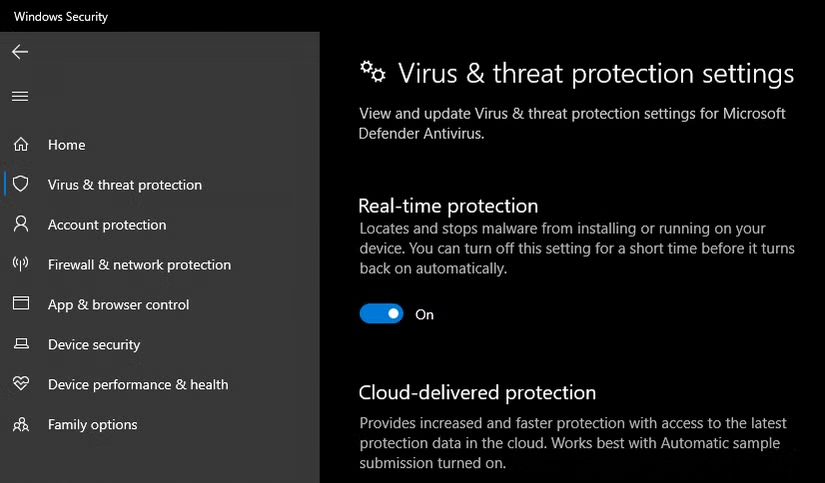
  1. Go to Windows Security > Virus & threat protection.
  2. Click Manage settings.
  3. Toggle Real-time protection off.

This prevents Defender from scanning files during the time it is disabled. Once you are done, turn it back on to stay safe. Remember, this method should be used sparingly when figuring out how to prevent Windows Defender from removing files.

Method 4: Use Controlled Folder Access

Controlled Folder Access is a feature that restricts changes to important folders by unknown applications. By customizing these settings, you can decide what apps have access to specific files.

  1. Open Windows Security.
  2. Go to Ransomware protection.
  3. Enable Controlled folder access.
  4. Add allowed apps that you trust.

This allows you to protect essential files without disabling Defender entirely. For many users, this is one of the safest ways in how to prevent Windows Defender from removing files unnecessarily.

Method 5: Use Group Policy Editor (Advanced Users)

image 189

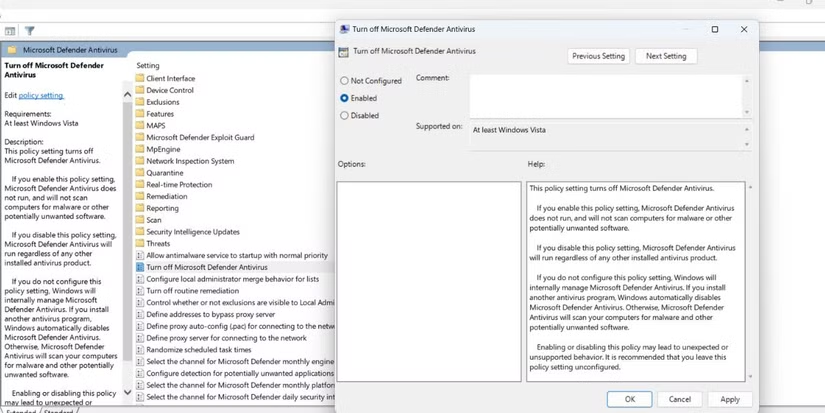
If you’re using Windows Pro or Enterprise editions, you can configure Microsoft Defender using Group Policy. This is a more advanced option for those who want complete control.

Steps:

  1. Press Win + R, type gpedit.msc, and hit Enter.
  2. Navigate to Computer Configuration > Administrative Templates > Windows Components > Microsoft Defender Antivirus.
  3. Configure policies like Turn off Microsoft Defender Antivirus or Configure Detection Options.

While this gives you full customization, be careful with settings as they can weaken your overall protection. This is an advanced way of managing how to prevent Windows Defender from removing files.

Method 6: Use Command Prompt or PowerShell

For users who are comfortable with commands, PowerShell offers flexibility. You can add exclusions or disable specific features directly with commands.

Example command to add an exclusion:

Add-MpPreference -ExclusionPath "C:\YourFolder"

This adds a folder exclusion so Defender will not scan or remove files in that directory. Such commands are another option in how to prevent Windows Defender from removing files.


Safe Practices When Preventing Defender from Removing Files

While it’s useful to know how to prevent Windows Defender from removing files, you must ensure you’re not exposing your system to real threats. Keep these practices in mind:

  • Only exclude files or folders you fully trust.
  • Avoid disabling real-time protection for long periods.
  • Always scan downloaded files with an external trusted antivirus.
  • Keep Windows updated for the latest security patches.
  • If you’re unsure about a file, upload it to a virus scanning service before excluding it.

Alternatives to Windows Defender

Some users prefer third-party antivirus software for better control. Options like Avast, Bitdefender, or Kaspersky allow users to whitelist files more easily. However, for most Windows users, Defender is sufficient once properly configured.

Understanding how to prevent Windows Defender from removing files helps you make the best of both worlds—strong protection without unnecessary deletions.


Conclusion

Windows Defender plays a crucial role in keeping your system secure, but its aggressive file deletion can sometimes interfere with your workflow.

By learning how to prevent Windows Defender from removing files, you can take control of your system’s security settings while keeping important data safe.

Whether you’re restoring files from quarantine, adding exclusions, disabling real-time protection temporarily, or using advanced tools like Group Policy and PowerShell, these methods ensure you don’t lose access to essential files.

Remember, the ultimate goal is balance: protect your computer without blocking your productivity. By following this guide on how to prevent Windows Defender from removing files, you’ll gain that control and peace of mind.

Samsung Galaxy Watch Ultra Review: Design, Features, Battery & Performance

samsung galaxy watch ultra

The world of smartwatches has expanded rapidly over the last decade, but only a handful of devices stand out as true premium wearables.

Samsung’s latest addition to its lineup, the Samsung Galaxy Watch Ultra, aims to compete at the very top, blending cutting-edge fitness features, rugged durability, and sleek design.

In this TazaJunction.com, we’ll dive deep into its performance, design, health-tracking capabilities, and whether it justifies its premium price tag.


Design and Build Quality

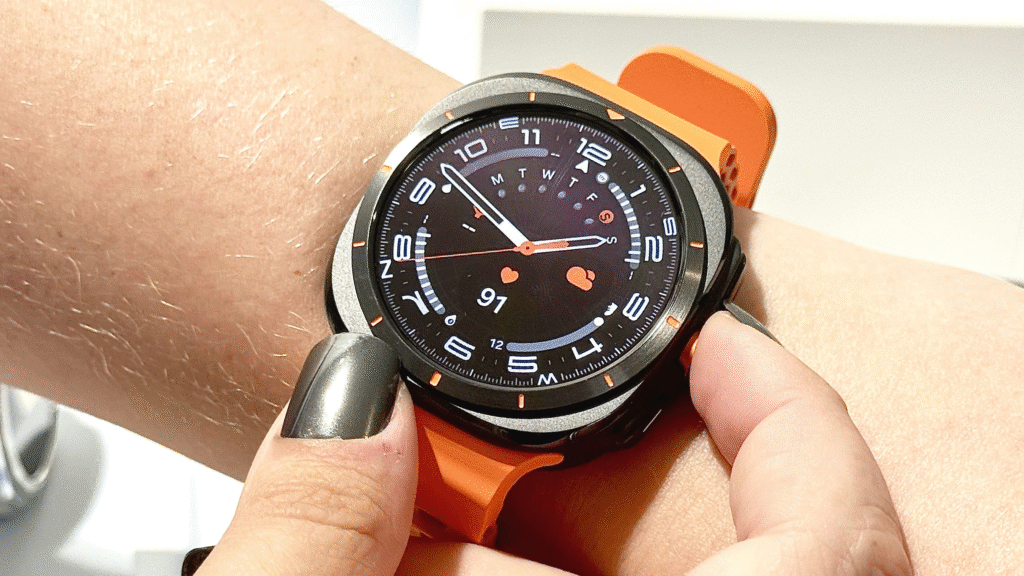
When you first unbox the Galaxy Watch Ultra, its premium design immediately catches your attention. Samsung has gone for a tough yet elegant build, using titanium casing paired with sapphire crystal glass.

This combination not only makes the smartwatch scratch-resistant but also ensures it can withstand outdoor adventures. The 47mm dial gives it a bold presence, while the crisp AMOLED display shines with rich colors and deep blacks.

Whether you’re in bright sunlight or a dim room, visibility is never an issue. The rotating bezel, a fan favorite in previous Galaxy Watches, is present here too, making navigation intuitive and smooth.

In this Samsung Galaxy Watch Ultra Review, it’s worth mentioning that the watch has been designed with both urban professionals and outdoor enthusiasts in mind.

It’s water-resistant up to 100 meters, shockproof, and MIL-STD-810H certified, meaning it can handle harsh environments without compromising performance.


Display Performance

The Ultra’s 1.5-inch AMOLED display is a highlight of this Samsung Galaxy Watch Ultra Review. It supports an always-on display mode with adaptive brightness, ensuring efficiency without draining too much battery.

The touch response is highly accurate, and the screen refresh rate feels smooth, whether you’re scrolling through apps, checking notifications, or swiping through workout stats.

The customizable watch faces allow users to choose between professional looks, playful designs, and data-heavy fitness dashboards. For outdoor runners or hikers, the high brightness setting ensures the screen remains readable even under direct sunlight.


Fitness and Health Tracking

Samsung Galaxy Watch Ultra

Samsung has always emphasized health features, and in this Samsung Galaxy Watch Ultra Review, fitness tracking is one of the biggest selling points.

Equipped with Samsung BioActive Sensor, the watch can measure heart rate, blood oxygen levels, body composition, and even detect irregular heart rhythms.

Key health features include:

  • ECG Monitoring: Helps track heart irregularities.
  • Sleep Tracking: Provides detailed analysis, including REM cycles and sleep coaching.
  • SpO2 Tracking: Monitors blood oxygen saturation during workouts or while sleeping.
  • VO2 Max: Essential for athletes, measuring cardiovascular endurance.

The watch comes with over 100 workout modes, including running, cycling, swimming, strength training, and yoga. The automatic workout detection is highly accurate, kicking in quickly when you start jogging or cycling.

For outdoor adventurers, GPS accuracy is excellent, thanks to dual-frequency GNSS support. Whether you’re navigating a city route or trekking through mountains, the Galaxy Watch Ultra delivers reliable performance.


Software and Features

This Samsung Galaxy Watch Ultra Review wouldn’t be complete without mentioning its software experience. The watch runs on Wear OS 4 with Samsung’s One UI Watch 5 layered on top.

The interface is fluid, and integration with Android smartphones (especially Samsung Galaxy devices) is seamless.

Highlights include:

  • Google Apps Integration: Use Google Maps, YouTube Music, and Gmail directly on the watch.
  • Samsung Ecosystem: Control Galaxy Buds, Samsung SmartThings devices, and sync with Samsung Health.
  • Third-Party Apps: Spotify, Strava, and WhatsApp are optimized for Wear OS, adding to convenience.

Voice commands are powered by both Bixby and Google Assistant, giving users flexibility depending on preference. Notifications are clear, actionable, and can be responded to using quick replies, voice typing, or even the on-screen keyboard.


Battery Life

Battery life has always been a concern in high-end smartwatches, but Samsung has made significant improvements here. In this Samsung Galaxy Watch Ultra Review, battery performance stands out as a strong point.

On a single charge, the Ultra delivers up to 100 hours in power-saving mode and around 48–60 hours with regular use, depending on settings. Always-on display and GPS usage reduce this, but the watch still outperforms many competitors in the premium category.

Fast charging is another plus—just 30 minutes on the charger gives you nearly 50% battery, making it convenient for busy lifestyles.


Connectivity and Smart Features

image 185

The Galaxy Watch Ultra supports Bluetooth 5.3, Wi-Fi, LTE variants, and NFC for Samsung Pay. LTE allows you to stay connected without your phone, letting you make calls, reply to texts, and stream music independently.

Other standout smart features include:

  • Fall Detection & SOS Alerts: Automatically notifies emergency contacts if a fall is detected.
  • Offline Music Storage: Download playlists from Spotify or YouTube Music for phone-free workouts.
  • Contactless Payments: Samsung Pay and Google Wallet make transactions effortless.

This Samsung Galaxy Watch Ultra Review shows how Samsung has packed productivity and safety features alongside health tracking, making it more than just a fitness gadget.


Performance and Usability

Performance is buttery smooth, thanks to the latest Exynos W940 processor paired with 2GB RAM and 32GB internal storage. Apps launch quickly, animations are fluid, and multitasking is seamless.

Haptic feedback is subtle yet effective, enhancing the user experience during notifications and navigation. The rotating bezel adds precision, making it easier to move through menus compared to touchscreen-only devices.


Pros and Cons

Pros

  • Premium design with titanium and sapphire crystal.
  • Excellent AMOLED display with high brightness.
  • Advanced health and fitness tracking features.
  • Strong GPS performance with dual-frequency GNSS.
  • Long-lasting battery life with fast charging.
  • Smooth Wear OS 4 + One UI Watch 5 software experience.

Cons

  • Larger size might not suit smaller wrists.
  • Expensive compared to other Galaxy Watch models.
  • Some advanced health features require a Galaxy phone for full functionality.

Should You Buy the Galaxy Watch Ultra?

In this Samsung Galaxy Watch Ultra Review, it’s clear that the smartwatch is built for users who demand premium quality, advanced fitness tracking, and seamless integration with their digital life.

While its price may be higher than standard Galaxy Watch models, the rugged design, enhanced battery, and professional-level features make it worth the investment for athletes, adventurers, and tech enthusiasts.

If you’re someone who values durability, accurate health monitoring, and an elegant yet functional design, the Galaxy Watch Ultra stands as one of the best smartwatches available today.


Final Verdict

To wrap up this Samsung Galaxy Watch Ultra Review, Samsung has successfully created a smartwatch that rivals, and in some cases surpasses, competitors like the Apple Watch Ultra.

With its stunning design, robust fitness features, and long-lasting battery, it’s a powerhouse device that delivers on nearly every front.

For those seeking the perfect balance between style and performance, the Galaxy Watch Ultra deserves serious consideration. It’s not just another smartwatch; it’s a lifestyle companion designed for those who want the very best.

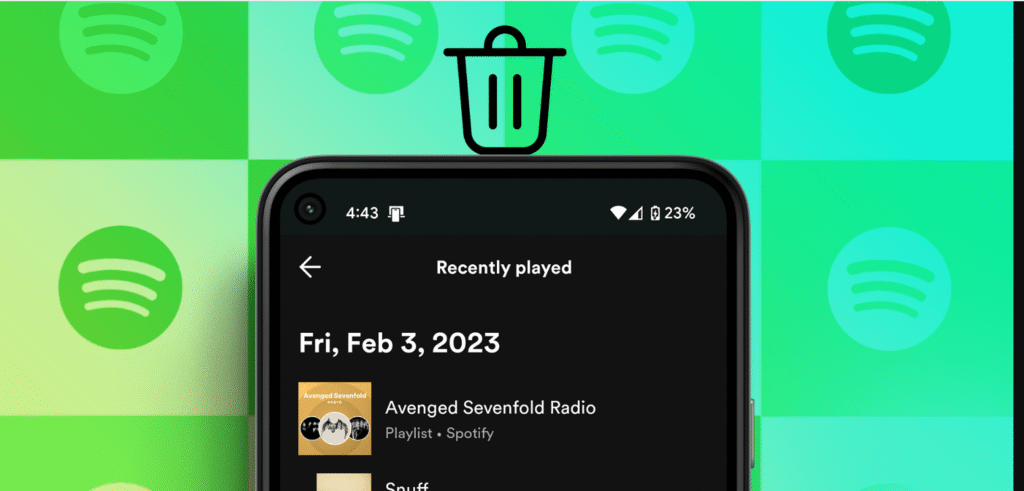
Spotify Listening History: How to View & Clear It Easily

spotify listening history

Music streaming has become an inseparable part of modern life, and for millions of users worldwide, Spotify is the go-to platform. From personalized playlists to curated recommendations, Spotify thrives on data gathered from your listening habits.

One of the most useful features is the Spotify listening history, which allows users to look back at the songs, albums, or podcasts they’ve played. Whether you want to revisit a track you enjoyed or simply manage your record of past plays, accessing and managing this history is essential.

At the same time, privacy-conscious listeners often ask how they can delete or clear their activity. If you share your account, you might not want others to see what you’ve been playing.

In this TazaJunction.com guide, we’ll walk through everything you need to know about Spotify listening history, how to view it, and how to clear it with ease.


What is Spotify Listening History?

The Spotify listening history is a record of your recent activity on the platform. Every time you stream a song, podcast, or playlist, it gets stored in the system. This history serves two purposes:

  1. Convenience – It helps users revisit previously played tracks without searching all over again.
  2. Personalization – Spotify’s algorithms rely on listening history to generate “Made for You” mixes, Discover Weekly, and daily playlists tailored to your taste.

For avid music lovers, this feature is like a musical diary, allowing them to trace back their moods and favorite genres over time.


How to View Spotify Listening History on Mobile?

On the Spotify mobile app, checking your listening activity is simple:

  1. Open the Spotify app on your Android or iOS device.
  2. Go to the Home tab and tap on the clock-like recently played icon.
  3. A list of your Spotify listening history will appear, showing the most recent songs, albums, or podcasts.

Additionally, your history can be seen in your Queue section, where you’ll find tracks you’ve already played alongside upcoming ones.


How to View Spotify Listening History on Desktop?

The desktop version of Spotify provides more detailed access. Here’s how you can check it:

  1. Launch the Spotify desktop app and log in.
  2. Look for the Queue icon at the bottom-right corner.
  3. Under the Recently Played tab, you’ll see your Spotify listening history in chronological order.

This version often shows more extensive data than mobile, allowing you to scroll further back in time.


How Far Back Does Spotify Listening History Go?

One limitation users often notice is that the Spotify listening history only shows a certain number of tracks, typically up to a few months depending on your activity.

While Spotify doesn’t provide an unlimited archive, you can always view your longer-term listening habits by checking the Spotify Wrapped feature, which highlights your top artists, songs, and genres for the year.


How to Clear Spotify Listening History?

Spotify Listening History

While Spotify automatically saves your play activity, you may want to clear it for privacy reasons. Unfortunately, there is no single “Clear All” button for the entire Spotify listening history, but there are ways to manage it effectively:

1. Private Session

If you don’t want certain songs recorded, enable a Private Session before listening.

  • On mobile or desktop, go to Settings > Social > Private Session.
  • Anything played during this session won’t appear in your Spotify listening history.

2. Manually Remove Items

Some items from your Recently Played list can be cleared:

  • Go to Recently Played on desktop.
  • Hover over the item and click on the three dots (…) menu.
  • Select Remove from Recently Played.

3. Account Sharing

If you share your account, switching to Private Session is the most effective way to prevent songs from showing up.

    While you can’t wipe your history entirely like you would in a web browser, these methods give you some control over what appears.


    Why Would You Clear Spotify Listening History?

    There are several reasons users choose to clear or hide their Spotify listening history:

    • Privacy Concerns – If you share your device or account, you may not want others seeing your music choices.
    • Recommendation Accuracy – Sometimes one-off songs can throw off Spotify’s recommendation algorithm. Clearing history prevents these from affecting playlists.
    • Professional Reasons – Some users who use Spotify during work presentations or events may not want casual tracks showing up.

    Whatever the reason, knowing how to manage this history puts control back in your hands.


    Tips for Managing Spotify Listening History

    If you want a balance between privacy and convenience, consider these strategies:

    1. Use Multiple Playlists – Keep experimental music or guilty-pleasure songs in a separate playlist.
    2. Switch to Private Session before listening to something you don’t want saved.
    3. Log Out on Shared Devices – This ensures your Spotify history isn’t altered by someone else.
    4. Regularly Check Recently Played – Stay on top of your activity to remove unwanted tracks quickly.

    Common Issues with Spotify Listening History

    While most users can easily view their history, a few common problems arise:

    • History Not Updating – Sometimes the app fails to show the most recent tracks. Refreshing or reinstalling can fix this.
    • Limited History – Spotify doesn’t display a complete archive, which can frustrate heavy listeners.
    • Synced Devices – If you use Spotify on multiple devices, syncing issues might cause inconsistencies in your Spotify history.

    Fortunately, updates and patches usually resolve these problems quickly.


    Conclusion

    The Spotify history is more than just a log of your past tracks—it’s a key feature that powers recommendations, personalized playlists, and user convenience. While Spotify doesn’t currently allow a full wipe of your history, options like Private Sessions and selective deletion give you control over what appears.

    For casual listeners, it’s a fun way to rediscover forgotten tracks. For privacy-conscious users, managing this history ensures peace of mind. By following the steps outlined above, you’ll always know how to view and clear your Spotify history with ease.

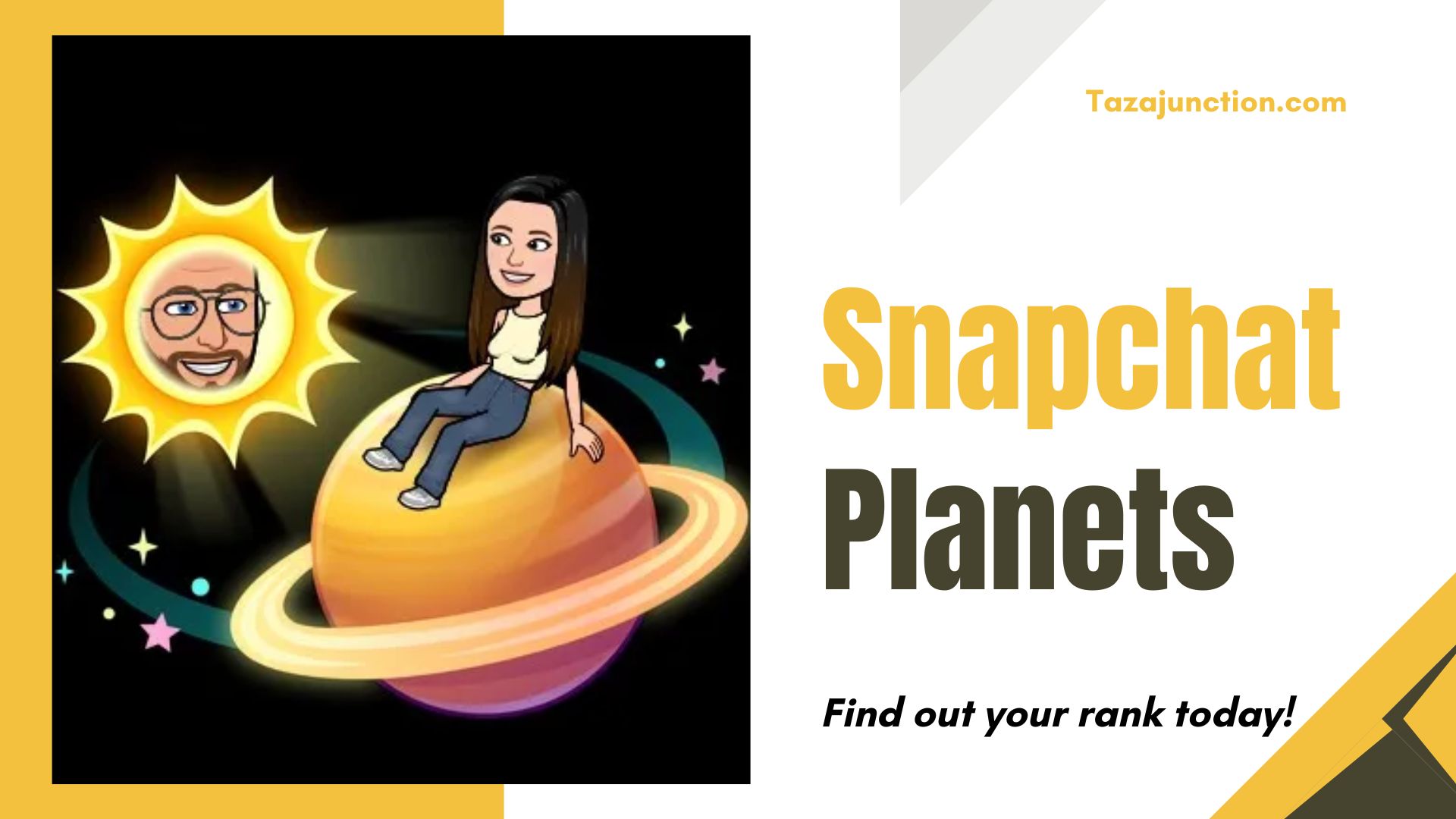
    What Are Snapchat Planets: Find Out Your Rank Now in 2025

    snapchat planets

    Snapchat has always been known for keeping its users engaged with fun, quirky, and mysterious features. From streaks to Bitmojis, the platform constantly introduces creative tools to keep conversations lively.

    Among its most talked-about features lately are the Snapchat Planets. If you’ve seen them but aren’t quite sure what they mean, don’t worry—you’re not alone.

    This TazaJunction.com article will break down everything about Snapchat Planets, their ranking system, and how they reveal more about your closest friends on the app.


    Introduction to Snapchat Planets

    The Snapchat Planets feature is part of Snapchat Plus, a premium subscription model that gives users exclusive perks. Instead of just showing who your best friends are in a traditional list, Snapchat adds a playful twist by ranking friends as planets in a solar system.

    Just like the planets revolve around the sun, your Snapchat friends revolve around you, with their position in the system depending on how much you interact with them.

    This gamified system of social interaction makes it fun for users to visualize friendships and adds a fresh layer to the social media experience. It’s no longer just about streaks—it’s about where your friends land in your personal universe.


    How Do Snapchat Planets Work?

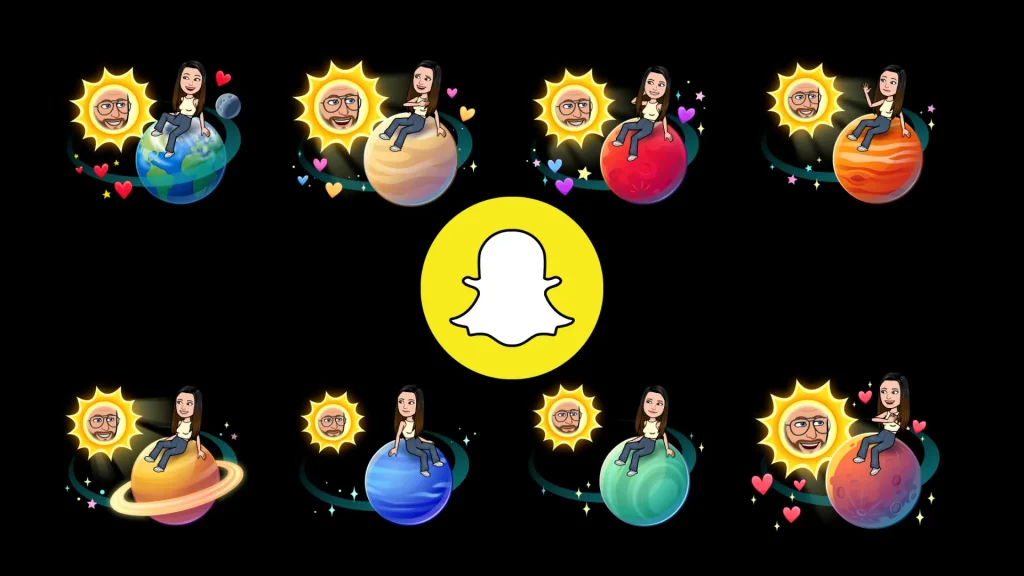
    Snapchat uses the metaphor of the solar system to explain closeness and engagement. Each user is at the center, like the sun, and their friends are represented as planets orbiting them. The Snapchat Planets rank your eight closest friends in order of interaction.

    For example:

    • Mercury represents your #1 best friend.
    • Venus represents your #2 best friend.
    • Earth represents your #3 best friend.
    • Mars represents your #4 best friend.
    • Jupiter represents your #5 best friend.
    • Saturn represents your #6 best friend.
    • Uranus represents your #7 best friend.
    • Neptune represents your #8 best friend.

    So, if someone appears as Mercury in your Snapchat Planets, it means they are your closest friend on the app based on messages, snaps, and interactions.


    Why Snapchat Introduced Planets?

    The feature was designed to keep the social element of the platform fresh. For years, Snapchat relied on streaks and emojis to signify friendships. While that system worked, it started to feel outdated.

    Snapchat Planets bring a fun, more interactive approach that resonates with younger audiences and those who enjoy gamification in apps.

    By connecting friendship levels to planets, Snapchat taps into curiosity and creativity. Many users now check their planets daily to see if relationships shift—making social interaction on the app even more dynamic.


    What Each Snapchat Planet Represents?

    Snapchat Planets

    Let’s break down the Snapchat Planets in more detail:

    1. Mercury – Your closest friend, the person you interact with most.
    2. Venus – Your second closest friend, often part of frequent group chats.
    3. Earth – Usually someone you snap daily, but not as much as the top two.
    4. Mars – A friend you interact with regularly but slightly less frequently.
    5. Jupiter – Still a strong connection, though interactions may be less frequent.
    6. Saturn – A loyal friend but not in your top five.
    7. Uranus – A friend you interact with casually but consistently.
    8. Neptune – Still important but has fewer interactions compared to the rest.

    Each of these planets is visually represented with colorful graphics, making it more appealing to check your rankings.


    How to Access Snapchat Planets?

    To see your Snapchat Planets, you’ll need Snapchat Plus, which is a paid subscription service. Once subscribed:

    1. Open Snapchat and go to a friend’s profile.
    2. If they’re in your top eight friends, you’ll see a special “Best Friends Solar System” badge.
    3. Tapping it reveals which planet they are in your solar system.

    It’s a premium feature, meaning not all users can access it unless they subscribe.


    Why People Are Obsessed with Snapchat Planets?

    The popularity of Planets lies in the mix of mystery and playfulness. Users are curious about where their friends rank and often compare notes with others. It has become a conversation starter and even a way to measure digital relationships.

    Some users view their rank as validation of closeness, while others find it a fun way to understand interaction patterns. It also brings a bit of nostalgia, as ranking friends reminds people of older social media platforms that had similar features.

    Do Snapchat Planets Change Frequently?

    Yes, they do! Your Planets rankings shift based on your interactions. If you stop snapping someone daily, their planet may drift further away from your sun, and another friend might take their place. This dynamic system ensures that the rankings feel accurate and reflect your real-time interactions.


    Privacy Concerns Around Snapchat Planets

    While Snapchat Planets are fun, they also spark debates about privacy and feelings. Some users feel pressured or anxious if they don’t rank high in someone else’s solar system. For younger audiences, it may even cause misunderstandings in friendships.

    Snapchat, however, has positioned it as a lighthearted feature. Since it’s only available in Snapchat Plus, it gives users the choice of whether or not they want to engage with this ranking system.


    How Snapchat Planets Affect Social Interactions?

    Interestingly, Planets have added a new dimension to how friendships are perceived online. People now pay more attention to who they interact with, and many aim to maintain their rank by increasing snap streaks or messages.

    It has turned everyday interaction into a playful challenge. For some, it motivates stronger connections, while for others, it may create competition. Either way, it has undeniably changed how users experience friendships on Snapchat.


    Should You Care About Your Planet Rank?

    Whether you care about your Snapchat Planets rank depends on how seriously you take social media interactions. For some, it’s just a fun, quirky feature. For others, it feels like a digital reflection of real-life friendships.

    At the end of the day, it’s important to remember that Snapchat Planets are just a playful feature and don’t necessarily define your true relationships.


    Final Thoughts

    The Snapchat Planets feature is an innovative way for Snapchat to keep its platform engaging while rewarding its premium subscribers. By turning friendships into a solar system metaphor, the app has created a unique visual experience that resonates with millions of users.

    If you’re subscribed to Snapchat Plus, it’s worth exploring the feature to see where your friends land in your universe. But remember: while Snapchat Planets may reveal who you interact with most online, your real-life connections are always more important.

    As Snapchat continues to evolve, expect even more features that combine fun, creativity, and social interaction. For now, the Snapchat Planets remain one of the app’s most fascinating ways to gamify friendships and keep users coming back for more.

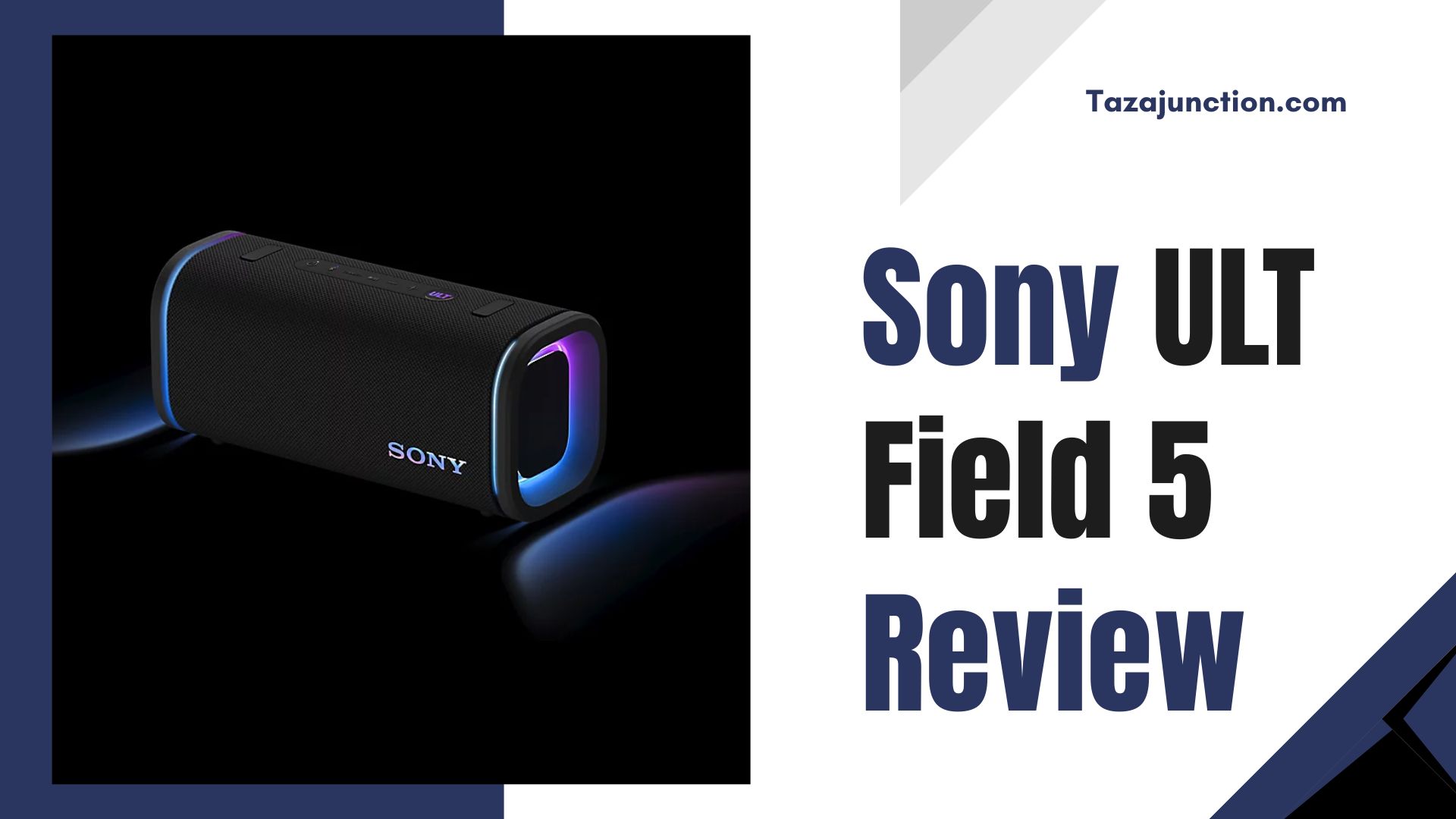
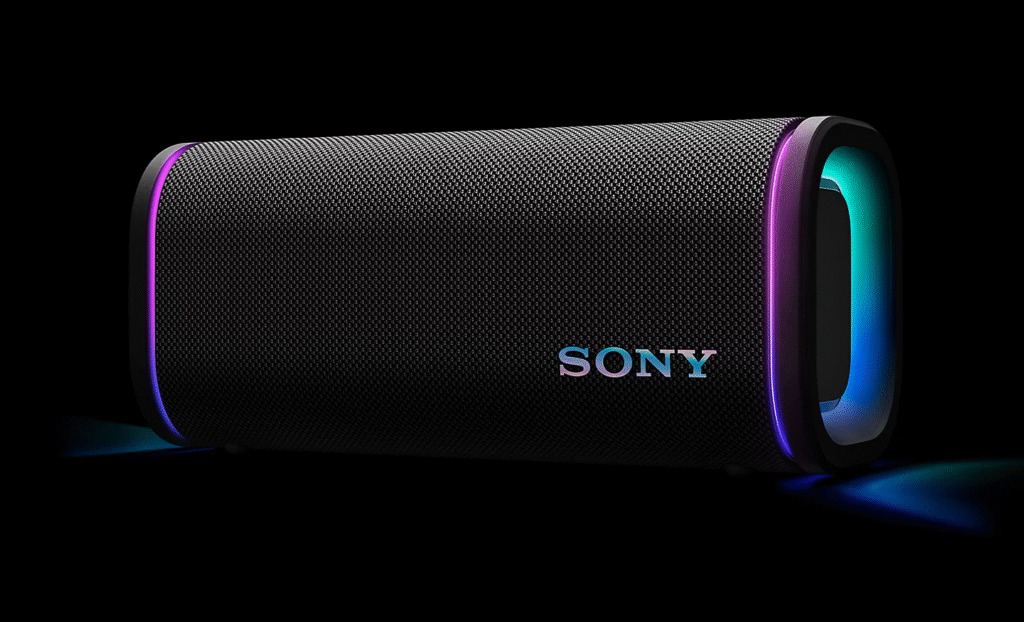
    Sony ULT Field 5 Review: Powerful Bass, Premium Design, and Long Battery Life

    sony ult field 5 review

    When it comes to portable Bluetooth speakers, Sony has consistently set a high standard by blending exceptional sound performance with modern aesthetics.

    The latest addition to Sony’s lineup, the Sony ULT Field 5, is no exception. In this detailed Sony ULT Field 5 Review, we’ll explore with TazaJunction.com about its thumping bass, premium design, battery life, and performance to help you decide if this speaker is the right fit for your music needs.


    First Impressions and Design

    The first thing you notice about the Sony ULT Field 5 is its sleek, premium design. With clean lines, robust materials, and an elegant finish, this speaker looks and feels like a high-end product. Whether you place it in your living room, carry it outdoors, or use it for a party, it exudes class.

    In this Sony ULT Field 5 Review, the design element deserves special mention. Sony has used durable materials that resist scratches, while its waterproof and dustproof rating ensures you can enjoy music anywhere.

    Its compact yet solid build makes it both portable and stylish, appealing to both casual listeners and audiophiles who value aesthetics as much as performance.


    Audio Performance: Bass That Packs a Punch

    The highlight of the Sony ULT Field 5 Review has to be its thumping bass. Sony has implemented its unique ULT sound technology that emphasizes low-end frequencies without drowning out vocals and instrumentals. The result is a balanced listening experience where bass lovers can feel every beat, yet mids and highs remain crisp and clear.

    When tested with electronic music, hip-hop, and pop tracks, the bass is powerful enough to energize a room. Even at high volumes, distortion is minimal, which shows Sony’s engineering excellence. If you’re a fan of bass-heavy music, the Sony ULT Field 5 will not disappoint.


    Connectivity and Controls

    Sony ULT Field 5 Review

    No Sony ULT Field 5 Review would be complete without mentioning connectivity. The speaker supports Bluetooth 5.3, ensuring quick pairing and stable connections. You can connect multiple devices at once, making it easy to switch between your phone, tablet, or laptop.

    The controls are intuitive, with physical buttons for power, volume, play/pause, and Bluetooth pairing. Additionally, the companion Sony Music Center app allows for deeper customization. You can adjust EQ settings, update firmware, or manage paired devices seamlessly.


    Battery Life and Charging

    Battery life is always a deciding factor in any portable speaker, and this Sony ULT Field 5 Review highlights its strong performance in that area. Sony claims up to 20 hours of playback on a single charge, which is impressive considering the speaker’s power output.

    In real-world usage, even at moderate to high volumes, it easily lasts a full day of casual listening. The USB-C fast charging feature ensures that even if you forget to charge it overnight, a quick 15-minute top-up gives you several hours of playtime.


    Durability and Portability

    A portable speaker should withstand everyday challenges, and the Sony ULT Field 5 Review proves just that. With its IP67 rating, the speaker is water-resistant and dustproof. Whether you’re taking it to the beach, a pool party, or a camping trip, it’s built to handle rough conditions.

    Despite its robust build, the speaker remains lightweight and easy to carry. Sony has included a sturdy strap for added portability, making it ideal for outdoor adventures.


    Smart Features and Extras

    One standout feature worth noting in this Sony ULT Field 5 Review is its ability to connect with other Sony speakers for a stereo or party mode experience. If you own multiple compatible Sony speakers, you can link them together for a much larger soundstage.

    Additionally, the speaker supports voice assistant integration, letting you control playback or get updates hands-free. Features like auto power-off and low-latency mode for video streaming further enhance its appeal.


    Pros and Cons

    Every review should balance strengths and weaknesses, so here are some takeaways from this Sony ULT Field 5 Review:

    Pros

    • Thumping bass with balanced sound
    • Premium design with durable build
    • Long-lasting 20-hour battery life
    • Waterproof and dustproof (IP67 rating)
    • Easy controls and app support
    • Party mode and stereo pairing options

    Cons

    • Bass may feel too heavy for listeners preferring neutral sound
    • Slightly more expensive than some competitors
    • No built-in Wi-Fi for direct streaming

    Comparisons with Competitors

    When writing a Sony ULT Field 5 Review, it’s important to compare it with rival models. Against the JBL Xtreme 3 and Bose SoundLink Revolve+, Sony’s speaker stands out for its deeper bass and longer battery life.

    While Bose may offer slightly cleaner mids and JBL a more rugged look, Sony strikes the perfect balance between performance and design.

    For those prioritizing bass-heavy music, the Sony ULT Field 5 is easily one of the top contenders in the premium portable speaker category.


    Who Should Buy the Sony ULT Field 5?

    As highlighted throughout this Sony ULT Field 5 Review, this speaker is ideal for music lovers who crave a strong bass presence without compromising on clarity.

    If you enjoy outdoor gatherings, poolside parties, or simply want a powerful speaker for your home, the Sony ULT Field 5 delivers.

    Audiophiles who prefer a flat, studio-like sound signature may lean toward other options, but for mainstream listeners, this speaker strikes a perfect balance between fun and fidelity.


    Final Verdict

    Wrapping up this Sony ULT Field 5 Review, it’s clear that Sony has crafted a speaker that delivers on its promises. With its thumping bass, premium design, and versatile features, it caters perfectly to modern music lovers.

    While it comes with a slightly higher price tag, the combination of performance, durability, and style makes it worth every penny.

    If you’re searching for a portable speaker that stands out in both sound and design, the Sony ULT Field 5 should be at the top of your list. For bass enthusiasts especially, this device is nothing short of a powerhouse.

    Top 7 Best Large Language Models Right Now – UPDATED

    best large language models

    Artificial Intelligence (AI) has rapidly evolved over the past few years, and one of the most transformative breakthroughs has been the rise of large language models.

    These models have redefined how machines understand and generate human language, powering tools like chatbots, translation software, content creation assistants, and even advanced research systems.

    With the growing number of options available, many professionals, researchers, and businesses are curious to know what the best large language models right now are, and how they compare against one another.

    In this TazaJunction.com article, we’ll explore the top-performing models in 2025, analyze their strengths and weaknesses, and explain why they stand out in the competitive AI landscape.


    What Are Large Language Models?

    Before diving into the list of the best large language models right now, it’s essential to understand what makes these systems unique.

    Large language models (LLMs) are AI systems trained on vast amounts of text data. They use deep learning techniques, particularly transformer architectures, to understand the context of words and generate responses that resemble human communication.

    The applications of LLMs are diverse, ranging from conversational AI to medical research, software development, and even creative industries. Their ability to adapt across industries makes them one of the most valuable innovations in technology today.


    Criteria for Ranking the Best Models

    When determining the best large language models right now, several criteria must be considered:

    1. Performance & Accuracy – How well the model understands context and generates relevant responses.
    2. Scalability – Whether the model can handle enterprise-level workloads.
    3. Versatility – Its ability to adapt across domains like coding, education, healthcare, or business.
    4. Accessibility – How easy it is for individuals and businesses to integrate and use the model.
    5. Innovation – New features and advancements that make the model stand out.

    Top 7 Best Large Language Models Right Now

    1. GPT-5 by OpenAI

    Large Language Models

    When people discuss the best large language models right now, GPT-5 is often at the top of the list. It continues the success of its predecessors, offering exceptional natural language understanding, improved accuracy in reasoning, and advanced problem-solving skills.

    Businesses use GPT-5 for customer support automation, content creation, coding, and decision-making. Its multi-modal abilities (handling text, image, and audio inputs) also make it highly versatile.


    2. Claude 3 by Anthropic

    Large Language Models

    Claude 3 emphasizes safety, ethics, and alignment. As one of the best large language models right now, it is designed with guardrails to reduce harmful outputs while maintaining conversational depth.

    Many organizations prefer Claude for use in sensitive environments like education, law, and healthcare, where responsible AI deployment is crucial.


    3. Gemini 1.5 by Google DeepMind

    Large Language Models

    Google’s Gemini series has become a strong competitor in the AI race. Gemini 1.5 is considered one of the best large language models right now due to its efficiency and integration with Google’s ecosystem.

    Its strong reasoning capabilities and access to real-time information through Google’s infrastructure make it particularly powerful for research and enterprise applications.


    4. LLaMA 3 by Meta

    Large Language Models

    Meta’s LLaMA 3 is another popular option among developers and researchers. What makes it one of the best large language models right now is its open-source availability, allowing more customization and experimentation.

    LLaMA 3 is lightweight yet powerful, making it suitable for academic projects and startups looking for flexibility.


    5. Mistral AI’s Models

    Large Language Models

    Mistral has quickly gained recognition for producing efficient and compact LLMs. Their models are optimized for performance while using fewer computational resources.

    Many experts consider them part of the best large language models right now because they democratize AI by making high-quality tools available without requiring massive infrastructure.


    6. Cohere’s Command R+

    Large Language Models

    Focused on retrieval-augmented generation (RAG), Cohere’s Command R+ is designed for enterprise use cases where accuracy and reliability matter most.

    Its integration with proprietary databases allows businesses to query information safely and accurately. This practical use case makes it one of the best large language models right now for enterprises dealing with sensitive or domain-specific knowledge.


    7. xAI’s Grok

    Large Language Models

    Created by Elon Musk’s xAI, Grok is designed with a witty, conversational style that appeals to casual users while still offering robust technical capabilities.

    Its integration with X (formerly Twitter) has given it wide adoption. As a result, it’s considered one of the best large language models right now, especially for interactive social applications.


    Why These Models Stand Out?

    The competition between AI companies has pushed innovation at an unprecedented rate. The models mentioned above are considered the best large language models right now because they balance multiple aspects: power, safety, usability, and accessibility.

    While GPT-5 leads with raw capabilities, Claude 3 sets benchmarks in ethical AI, and Gemini 1.5 excels with real-time reasoning.

    Another factor that makes these models stand out is their adaptability. From coding assistants to creative writing tools, and from enterprise applications to personal productivity aids, each model is finding unique ways to shape industries.


    Challenges Facing Large Language Models

    Despite being the best large language models right now, these systems face significant challenges:

    1. Bias and Fairness – Even the most advanced models can inherit biases from training data.
    2. Energy Consumption – Training massive AI models requires enormous energy, raising environmental concerns.
    3. Accessibility Gaps – Some models are locked behind expensive APIs, making them inaccessible to smaller players.
    4. Ethical Risks – Misuse in misinformation campaigns or sensitive fields like healthcare still poses risks.

    Addressing these challenges will determine how sustainable and effective these models remain in the future.


    The Future of Large Language Models

    Looking ahead, the best large language models right now will continue to evolve. We can expect future models to become more efficient, multimodal, and specialized. Instead of one model trying to do everything, companies are likely to create domain-specific LLMs tailored for medicine, law, education, or engineering.

    Additionally, regulatory frameworks around AI are expected to grow. Governments worldwide are keeping a close eye on AI adoption, ensuring that ethical practices guide its deployment.

    This balance between innovation and regulation will define the trajectory of large language models in the coming decade.


    Final Thoughts

    Choosing the best large language models right now depends largely on your use case. For general-purpose applications, GPT-5 and Gemini 1.5 lead the way.

    If safety and alignment are priorities, Claude 3 is a top contender. For open-source flexibility, LLaMA 3 stands out, while Cohere’s Command R+ and Mistral models are strong options for enterprises and resource-conscious projects.

    The reality is that no single model dominates every area. Instead, the best large language models right now form a diverse ecosystem, each excelling in different domains.

    As AI adoption grows, having multiple strong contenders ensures innovation continues to thrive, giving businesses and individuals powerful tools to shape the future of technology.